Showing posts with label Technical. Show all posts

Monday, October 29, 2018

Google Home Hub - Everything you need to know about it.

Google newly launched 7 inch smart Google Home Hub. It seems like Google did experiment with a tablet and its home mini and combined both to build a smart Google Home Hub. It has an ambient light sensor that can auto-adjust the brightness depending upon the light present in the room. The biggest drawback is that it lacks a camera.
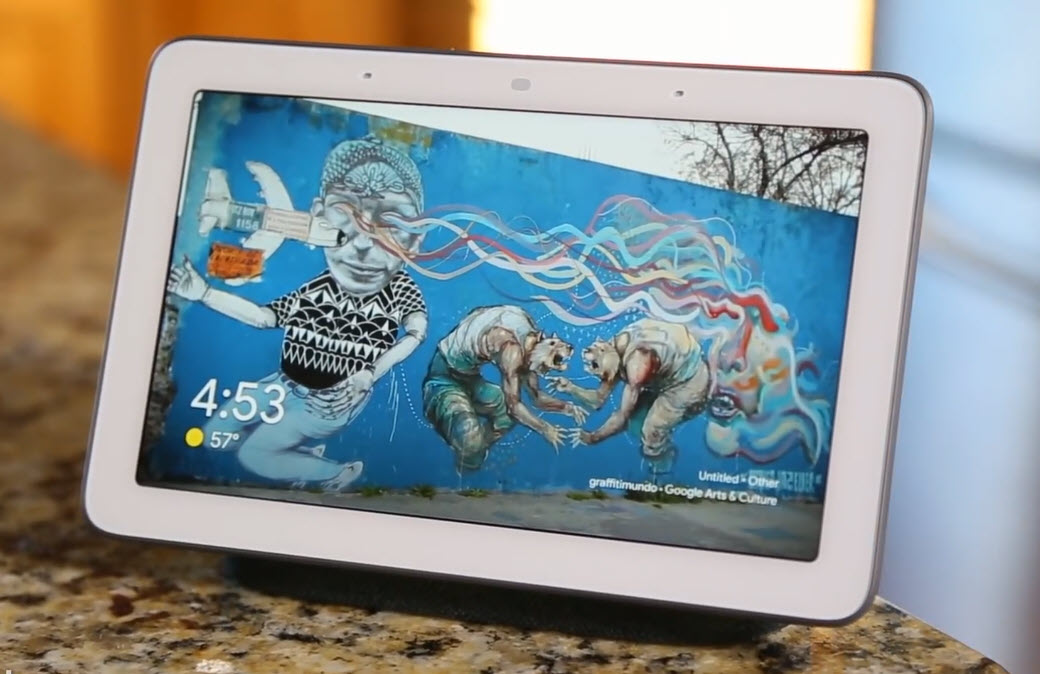

What it will look like?

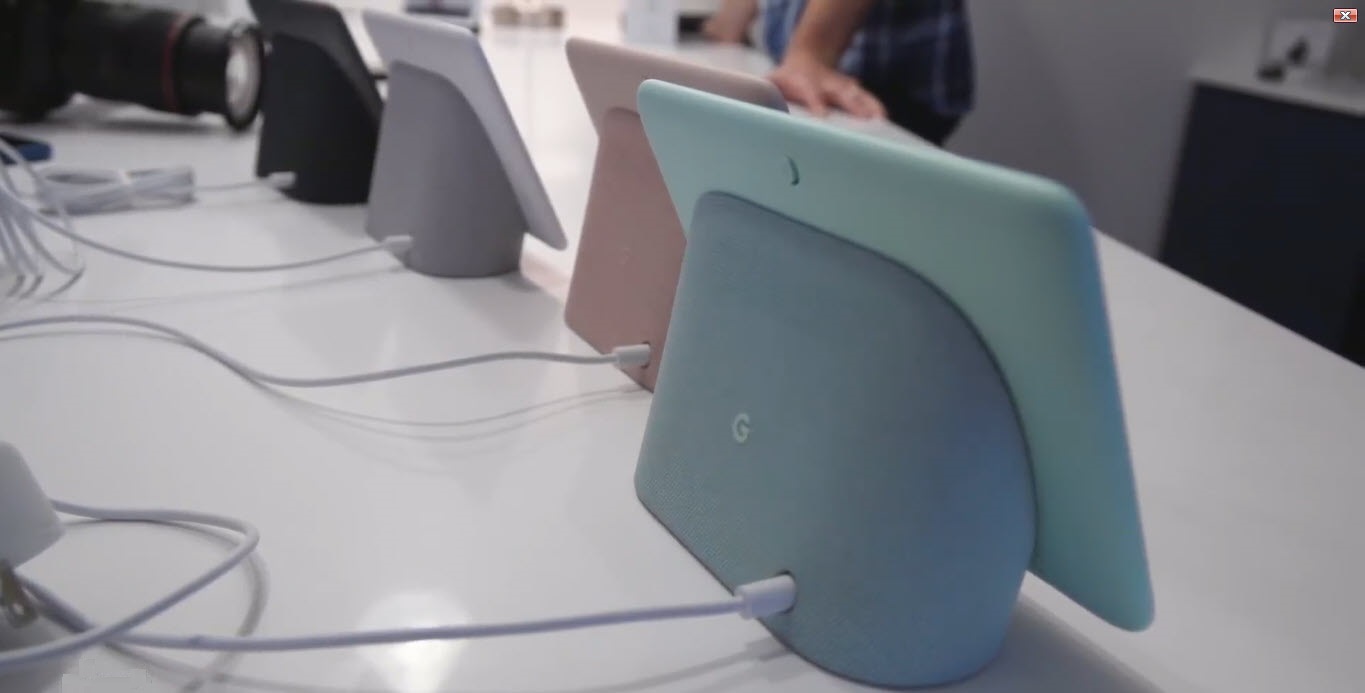
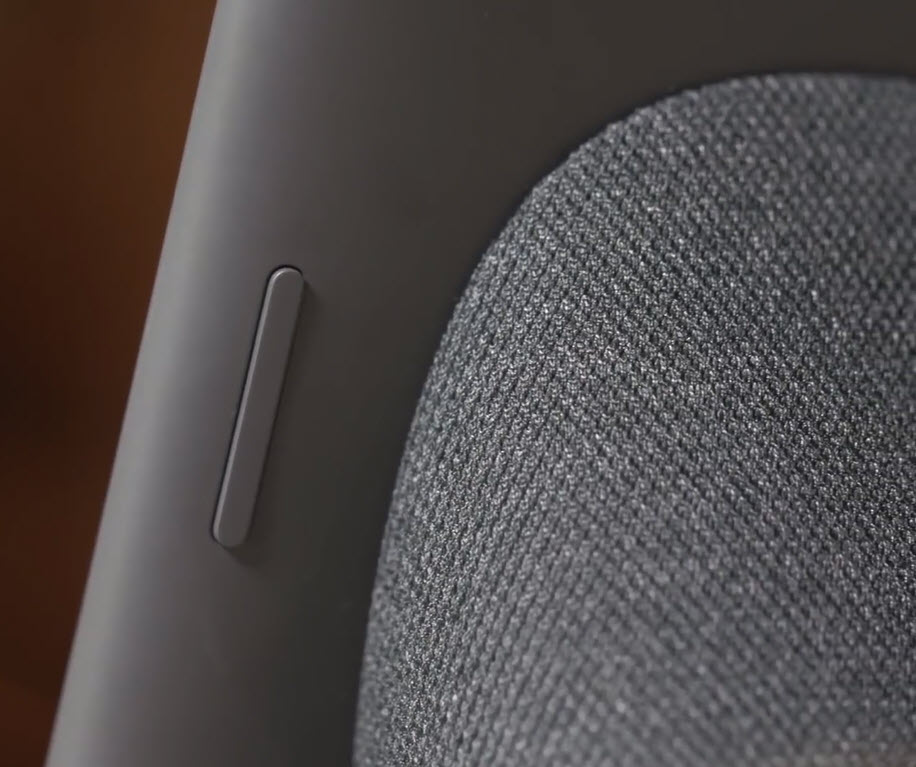
Google Home Hub is 7 inches by 4.5 inches tall, and a depth of 2.65 inches. It weights the same as Google Home. You get two two physical controls: A volume rocker and a privacy switch to turn off the microphone and stop the device from listening “OK, Google” voice commands. Google Home Hub will be available in four colors: chalk (white), charcoal (dark grey), aqua (light blue), and sand (pink).


Features & Controls:

Google Home Hub comes handy for viewing pics, watching videos, and live Television with Youtube Tv. It shows more information if you ask about the weather, or for anything like Recipes to get the steps. It uses Google Assistant at the back-end which shows results with the help of touch screen.

You can control the volume from its back, or can give the Voice command or use its Touch Screen. It has a good mike and sound quality of the speaker inside it is good but not that equally good if you compare google home mini. Overall, its a cheap affordable device with interactive touch screen and looks cool placed anywhere as a photo frame.


The Hub will also allow access to Google photos, allowing users to enable “Live Albums” to create slideshows by identifying people that the user wants to see regularly, such as friends or family members. Users can also simply access albums on the fly with voice commands like, “Hey Google, show me my photos of last birthday.” If one will add a pic in the live albums, it will automatically show that new pic. The HD display will also play videos from YouTube, and moreover it will come with free six months YouTube Premium subscription.

One can use it in the Kitchen or in the Drawing Room and it looks pretty beautiful anywhere as its small and looks like a tablet with a speaker and google assistant voice inside it.

It can handle a most of everyday productivity functions like issuing commands, making shopping lists, asking for a song to play and placing audio calls. Like other Google Assistant-supported devices, it uses a voice-matching function to identify separate users and deliver their calendar, commuting details, and reminders, which are displayed by the screen visuals.
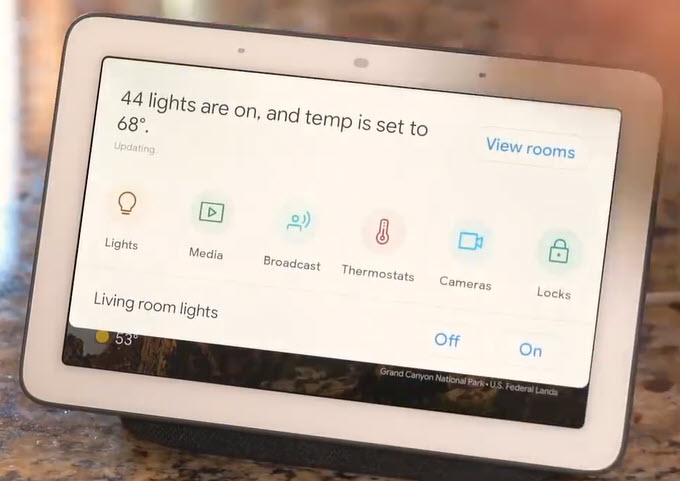


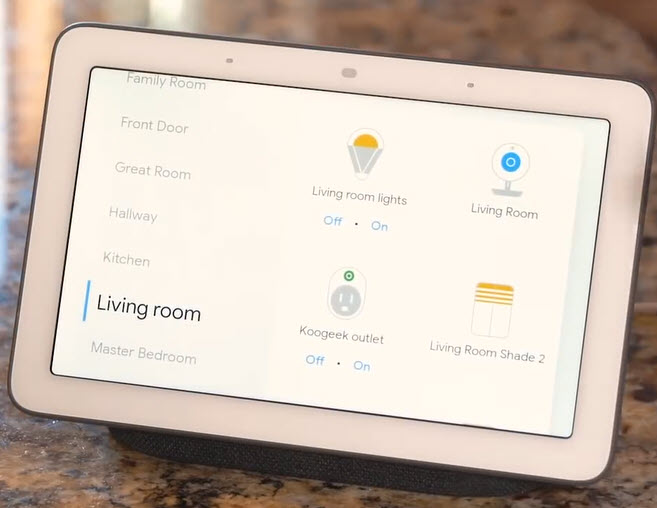
It has a smart home dashboard called “Home View” that Hub users can swipe down on the touchscreen to access every smart home gadget, such as lights, media, broadcast, thermostats, cameras, locks and speakers. Click View Room option to see all of your Smart Phone Devices out here room by room. Similar Home View is also available on the new Pixel 3 phone.

Sound quality

If we look at listening to just music perspective, the Home Hub sounds somewhere in between the Google Home and the Home Mini. It can get pretty loud and clear, but lacks any real bass and sounds pretty unpleasant at 100% volume, and one can easily say its not a smart speaker to buy for rocking out.

It does a great job of rendering the Assistant’s voice, and works perfectly well for watching YouTube videos and news broadcasts. But Comparing to the audio you get from Amazon’s first-generation Echo Show, it lacks the quality in audio.

Cons:

Unlike other smart displays, Google Home Hub lacks a camera, which may be either a good or bad, completely depending on how you feel about your privacy and the lack of ability to video chat. The only buttons on the outside of the Hub are volume up/down and mic on/off. The HD Screen sometimes seems too small to watch videos for an extended period of time. In the last, it doesn't have a 3.5 mm socket.

Price:

Google Home Hub features Google Voice assistant and will be available for $150, with a slightly lower competitive price of Lenovo Smart Display, which starts at $199. Google Home Hub price in India is expected to be Rs. 11,000. Google Home Hub will start shipping from October 22, 2018.

Comparison with Lenovo Smart Display:

When placed next to the Lenovo Smart Display, which is another Google Assistant smart speaker with a touchscreen, one can easily tell the difference clearly in size like comparing a tablet to a smartphone. It seems Home Hub’s small size makes it more versatile and is designed for primary use in the kitchen.

Do you think Google Home Hub is a decent priced product from google and should be bought? I look forward to read your comments below.

Read more: Click Here

Ajey Kumar Gupta
(Microsoft Exchange Admin)

Next Blog: Publishers can embed Subscribe button inside their Youtube Videos
Sunday, October 21, 2018

Publishers can embed Subscribe button inside their Youtube Videos
Youtube Video now includes a Subscribe button inside them.

Youtube has added a new feature where Subscribe Button will not just be visible inside the video but viewers will be able to Subscribe the channel directly by clicking inside the played video. Subscribe Button will be functional within the video itself.

Lets understand with the help of an example:

Suppose you are watching the Youtube video inside any other website e.g., www.akginfotech.com and if any viewer likes the content and has to subscribe that channel, up until now, the user has to open the URL page of that video and come to Youtube's page in order to Subscribe the channel, however now he will directly be able to subscribe by watching the video anywhere. Thanks to Youtube for this added feature. Youtube is making things easier for its viewers to subscribe to the channel viewers want.

Steps Required to add Subscribe Button next to your Channel Logo:

a) Login to Youtube - Creator Studio.

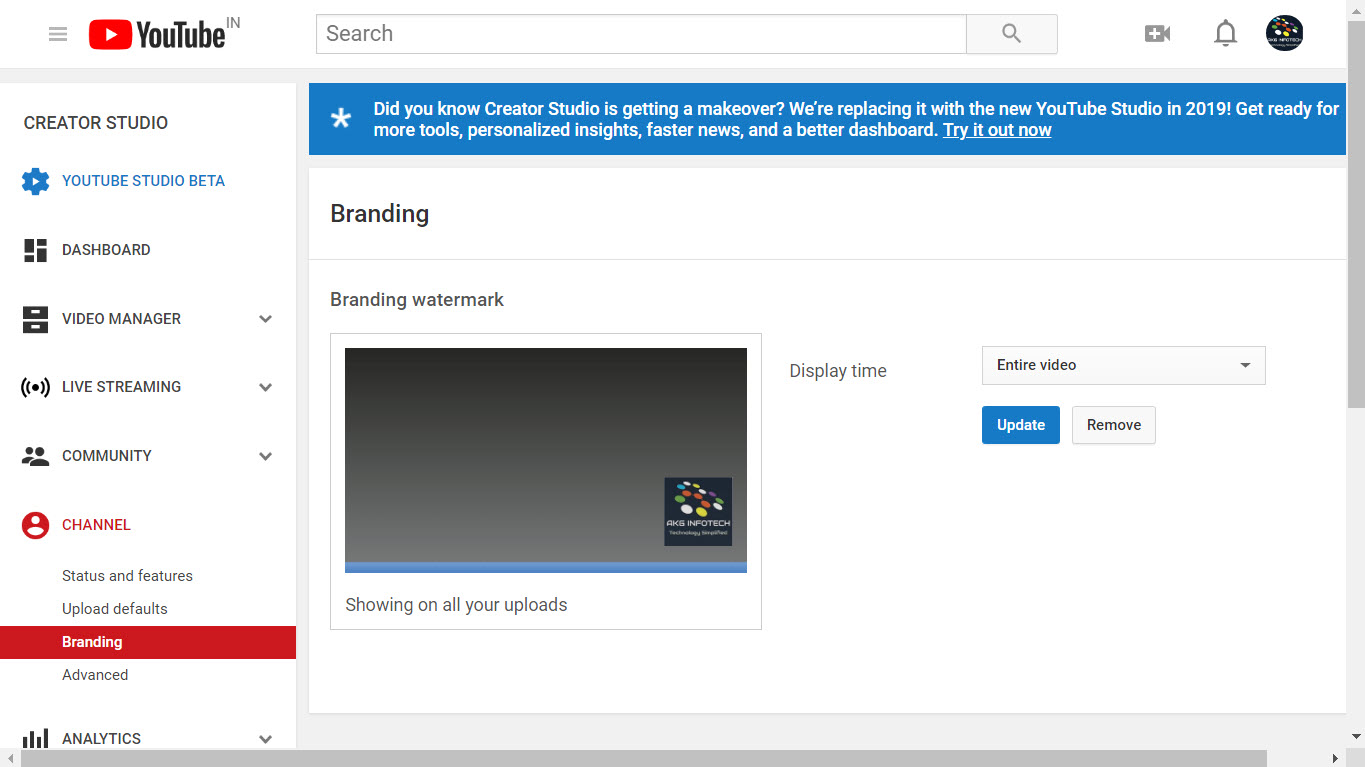
b) At left pane click Channel - Branding

c) Select your logo for your Youtube Channel and choose Entire Video. Now your channel logo will be shown in the entire video you will publish and a new user can subscribe easily.

If you will embed your video in your own website, Subscribe Button will be shown at top next to your logo in Red Color.


You can see the Subscribe Button in action in the video below, which is our "How to Get free Lynda Account September 2018". If you hover over the AKGInfotech logo on the top left, an option to Subscribe in red color will appear. So now a new user can easily Subscribe the channel directly from my own website Akginfotech.com. One has to be logged into Gmail in the browser else he will be prompted to login.


I hope it would be useful for all those users who have YouTube Channels and are looking for Subscribers.

To Read More: Click Here

Thanks a ton for reading my blog. I hope you like it. Do click Subscribe button right now & post a comment below if you appreciate the work.

Ajey Kumar Gupta
(Exchange Server Admin)

Next Blog: Google Home Hub - Everything you need to know about it.

Saturday, October 20, 2018

Windows Server 2019 Released but hold back due to...

Windows Server 2019 will be the latest Server Operating System added into the Windows NT family of operating Systems by Microsoft.  Its first Insider Preview was announced on 20th March 2018.

It was finally released on 2nd October 2018 (Mahatma Gandhi Jayanti). Its trial for 180 Days was available on Microsoft website:

https://www.microsoft.com/en-us/evalcenter/evaluate-windows-server-2019

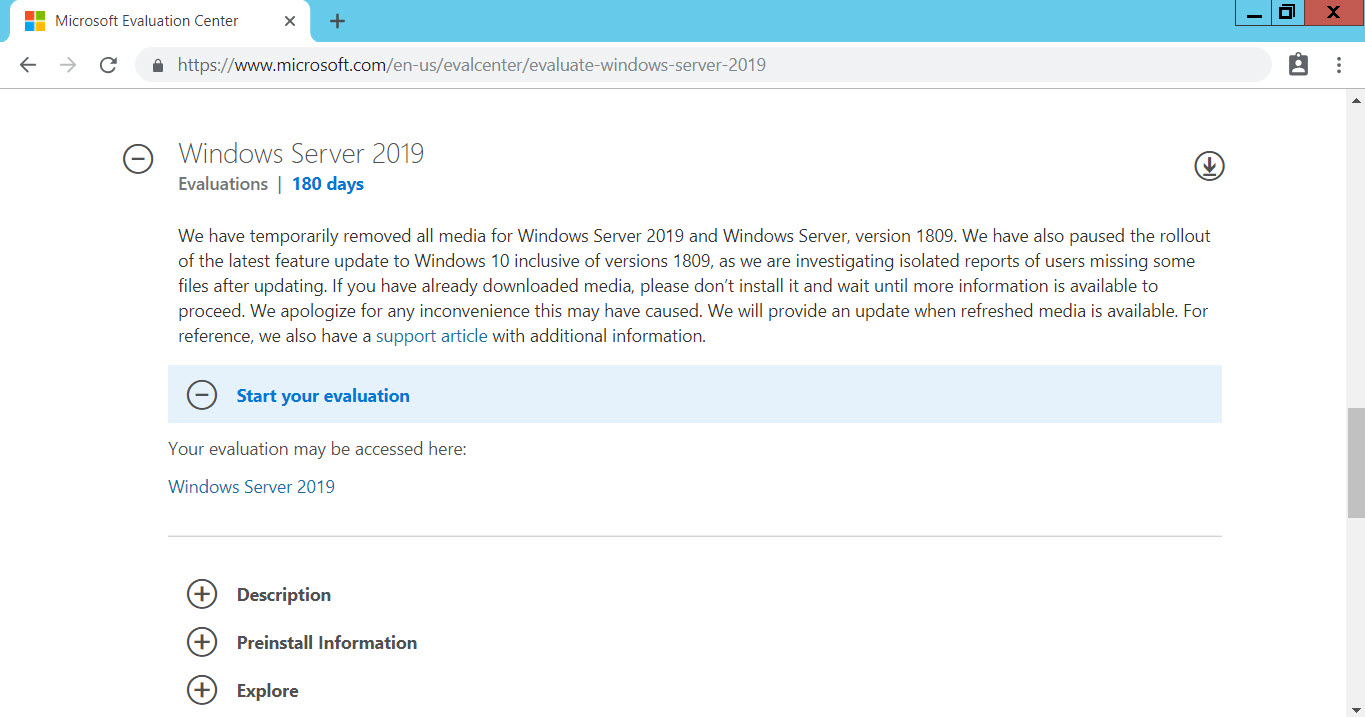
However, Microsoft found issues with it, paused the rollout and removed the ISO until the bugs are not fixed in the Operating System.

Microsoft clearly mentions on its website that "We have temporarily removed all media for Windows Server 2019 (version 1809) as many users found their data missing after installing it. Also for Windows 10 update (version 1809), this latest rollout has been paused as Microsoft is investigating isolated reports of missing files after updating."


Friends, at the time of posting this blog, ISO of Windows Server 2019 was not available to download. Screenshot attached above. You will be updated first on this blog whenever it re-appear for download.

Microsoft on its website mentions that if you have already downloaded media, please don’t install it and wait until more information is available to proceed. We apologize for any inconvenience this may have caused. We will provide an update when refreshed media is available. For reference, we also have a support article with additional information.

Do you think Microsoft released the Server Operating System without proper testing? It led Microsoft remove it from its website? Looking forward to read your comments below.

Read More: Click Here

Ajey Kumar Gupta
(Exchange Admin)

Next Blog: Exchange Hybrid Setup in Office 365 | HCW setup Step by Step

Wednesday, October 3, 2018

Google AdSense के अंदर की Terms को समझें | CPC, RPM, AD Units, Monetizationetc.

Friends, there are various terms used in Google Ad Sense which has it own meaning. I have tried my best to include all common terms used in Ad Sense in simple language. I hope it would be helpful to all Ad Sense Users:


Monetization: The process of Earning Revenue on a web property e.g., Website or YouTube Videos.

Keyword: A word or phrase on a webpage that easily identifies the overall concept presented by the webpage.

Bid: The amount of money Advertisers are willing to pay when their advertisement is viewed or clicked.

Ad Unit: An area on a website where advertisements will be automatically displayed using Google AdSense.

Page View: When a user accesses a Single Page on your website. It’s a page where one or more Ad Sense “Ad Units” are viewed by a user on a website.

Clicks: The action of clicking on an advertisement by the user visiting the website. Its recorded and can be seen in the Performance Report.

Click through Rate (CTR)The ratio of clicks a particular ad on a website receives in comparison to the number of total pageviews it has received. E.g., if you received 100 impressions (100 different Ads are shown on the website or 100 times the same advertisement shown on a Page) and out of 100 times a user clicked certain advertisement only once, so the Click through rate will be 1%.

Impression: A single view of an advertisement on the website. You can have multiple Ad Impressions e.g., On a single page if you have 3 AdSense Ads, it will be 3 Impressions.

Cost per Click (CPC)The amount of money paid by an Advertiser for each click on their ads shown in the Google Ad Sense Ad Unit. We can check the Average CPC from Performance Report.

Internet Display Advertising: Certain areas of a website or blog that are reserved and sold to advertisers to promote a particular product or service.

Revenue per Thousand (RPM) Impressions: The Average amount of revenue earned by a Publisher for 1000 impressions on a particular ad unit or website. It’s the best metric to measure the performance of Google Ad Sense Advertisements.

Cost per Thousand Impressions (CPM)The amount of money paid by an Advertiser for 1,000 Page views or Impressions on an Internet advertisement.

Ad network: A collection of advertisers paying for Internet advertisements and publishers earning revenue from displaying advertisements on their web property.

Ad Requests: The Total number of times an ad unit on a particular website requests Google Ad Sense to serve a relevant and related advertisements. E.g., In other words, every time a user goes to a page on your website that has an ad unit, the ad unit is requesting Google Ad Sense to put an advertisement inside of it.

Estimated Earnings: The Total amount of Revenue earned by a publisher regardless of the number of page views. We can even check our daily, weekly or monthly Estimated Earnings.

Coverage: The percentage of ad requests in which a relevant and related advertisement is found and displayed within the ad unit. So if every time an ad unit requests an advertisement from the AdSense, its actually placed within the Ad Unit, and your coverage will become 100%. If while placing an Ad Requests google is not able to find an ad to place on your website, it means you have to tweak your Title of the page, Ad relevant keywords etc. for google to find the advisement on your web page.

Custom channel: A group of Ad Sense ad units in which their combined performance is tracked.

Active View Viewable: It means what percentage of your advertisements are viewable to the user for at least more than one second. It is seen as a parameter in My Report – Default. To check it more deeply, Common Reports – Ad units. You will see Active View Viewable, whichever add is low, we need to check and reposition that ads on our website.

Custom URL: It can combines the performance of all the ads on your homepage. You can find it at Google Ad Sense - My Ads – Custom URL – Select the Ad Units you have created for particular sections on your websites & combine those to get the overall performance results.

URL Channels: It allows you to track the Ad Performance of a Specific Page or Post on your website. You can add the full URL of any particular post and get its Performance Results. You can add maximum 500 Urls.

Google Ad Sense - My Add – New URL Channel – Add upto 500 URL’s e.g., your website’s home page address.

We can then later move on to Performance Reports to check which one is giving us more revenue.

Add Styles: When we create Ad Units, we have the option to use Default Google’s Ad Styles or we can create a custom adds.

Google Ad Sense - My Ads – Ad Styles – Create a new one by editing the default one.

User Management: If you are using Google Ad Sense for your organization, and want your users to use the code.

Google Ad Sense – Settings (Left Pane) – Access & Authorization – User Management.

Here we can add other users to our Ad Sense Management. Enter their Email & click Invite. We can create an Administrator and Standard User. Standard User can also do everything like Administrator except Managing Users.

Friends, there is a video explanation in details as well. Please watch it:


I hope friends you would have got a good idea on the Terms & Options used in Google AD Sense now. If you have any queries or feedback, kindly comment below and I will try to revert you asap.

Read More: Click Here

Thanks a ton for reading my blog. I hope you like it.

Ajey Kumar Gupta
(Exchange Server Admin)

Next Blog: How to create Professional or Business Email Address with Microsoft Office 365.

Monday, October 1, 2018

How to create Professional or Business Email Address with MicrosoftOffice 365

Duration to complete: Less than 5 minutes.


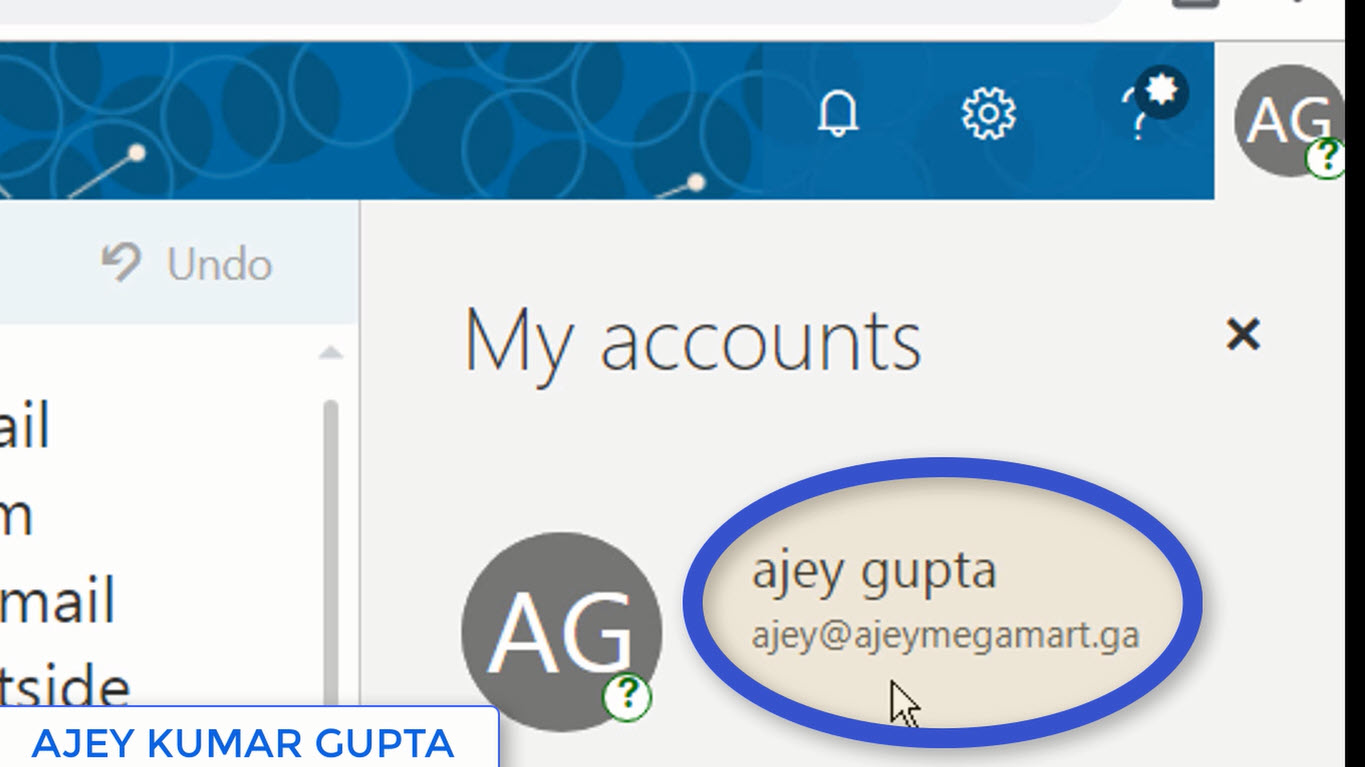
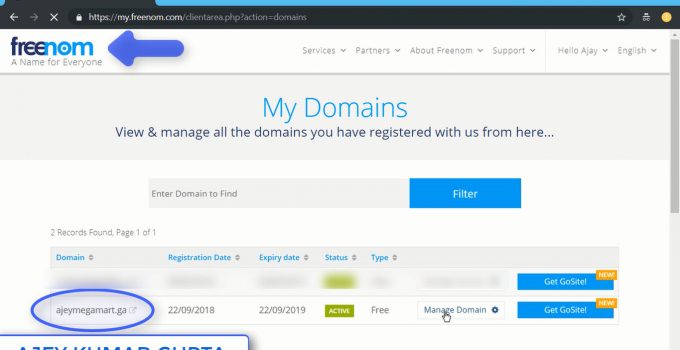
Step1: Own a domain name from Freenom.com. For this blog, I created ajeymegamart.ga domain using with I will create my business Email address like ajey@ajeymegamart.ga.

Step 2: Search Office 365 E5 Trail in Google.com and click on the first link.


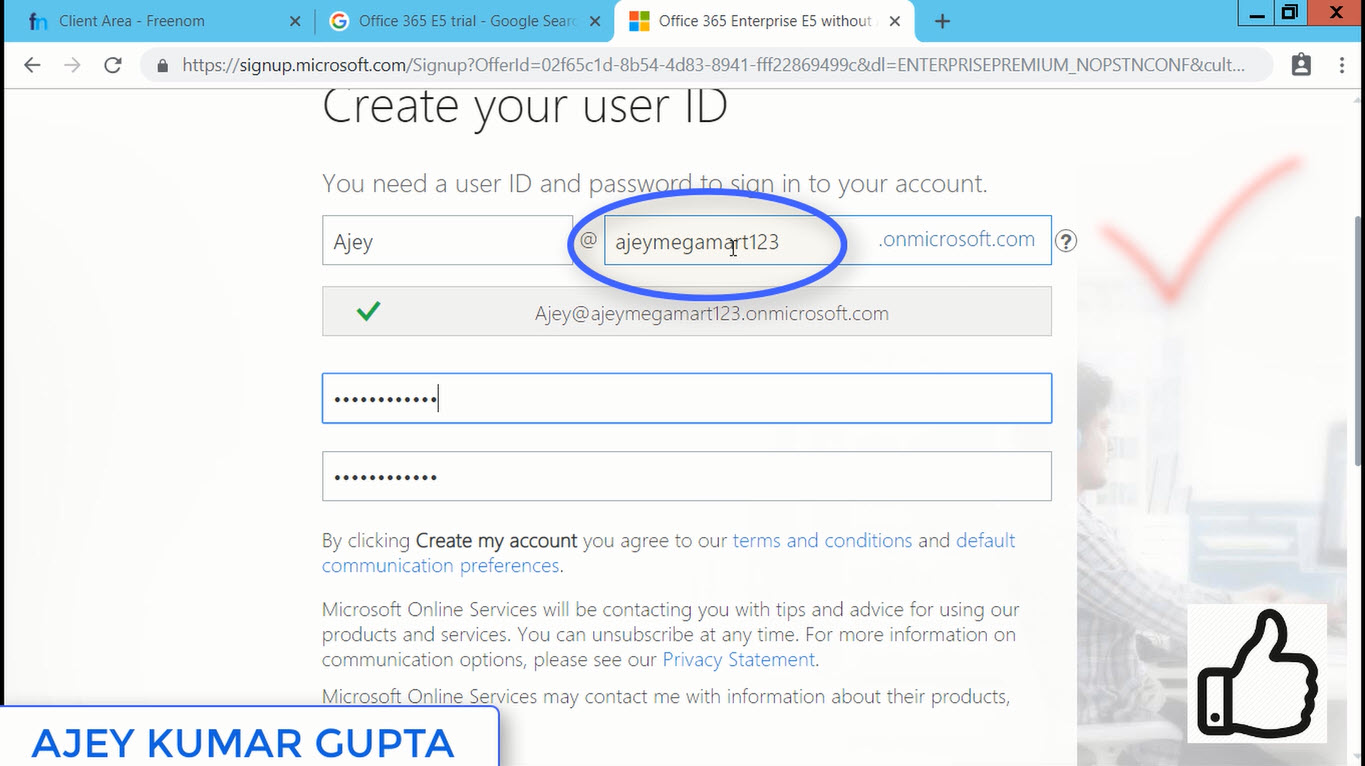
Step 3: Fill out the form. Make sure at this step while adding your business domain, don't add your actual domain name else it will stuck with this particular tenant you are going to create and cannot be removed if you want to use it by creating a new tenant after this. Add your domain name in the form like domain123 e.g., ajeymegamart123


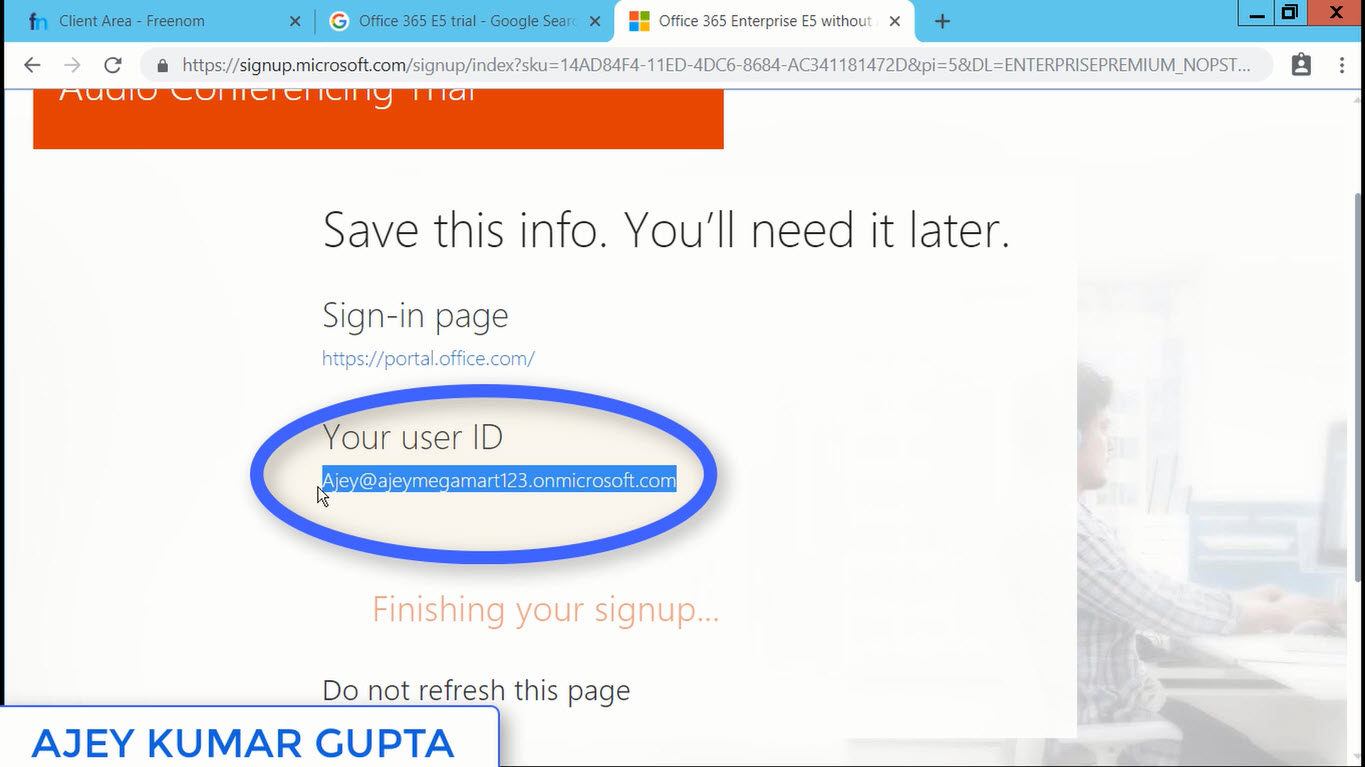
Step 4: After completing the form we will get the first Global Administrator (who has all the rights to administer the tenant) i.e., ajey@ajaymegamart123.onmicrosoft.com 


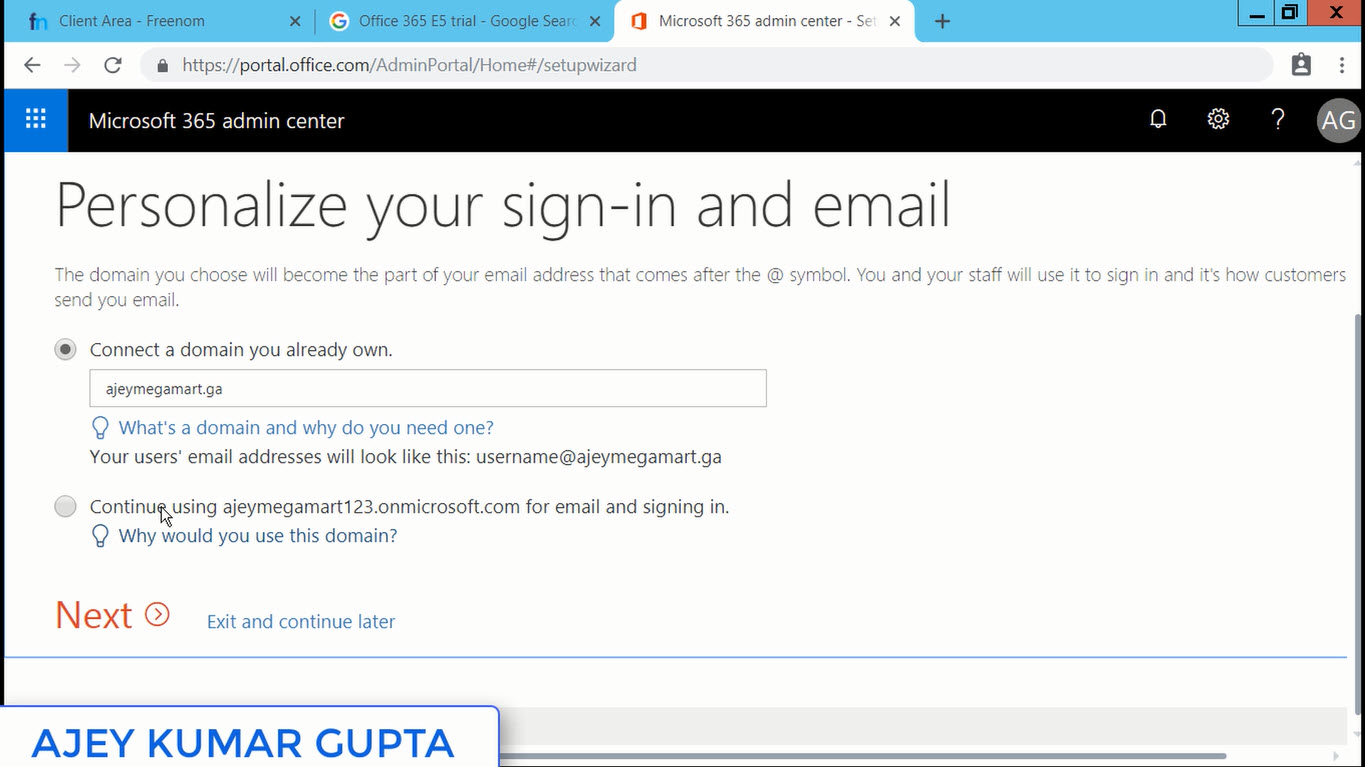
Step 5: Now at this step we will enter our actual domain name i.e., ajeymegamart.ga


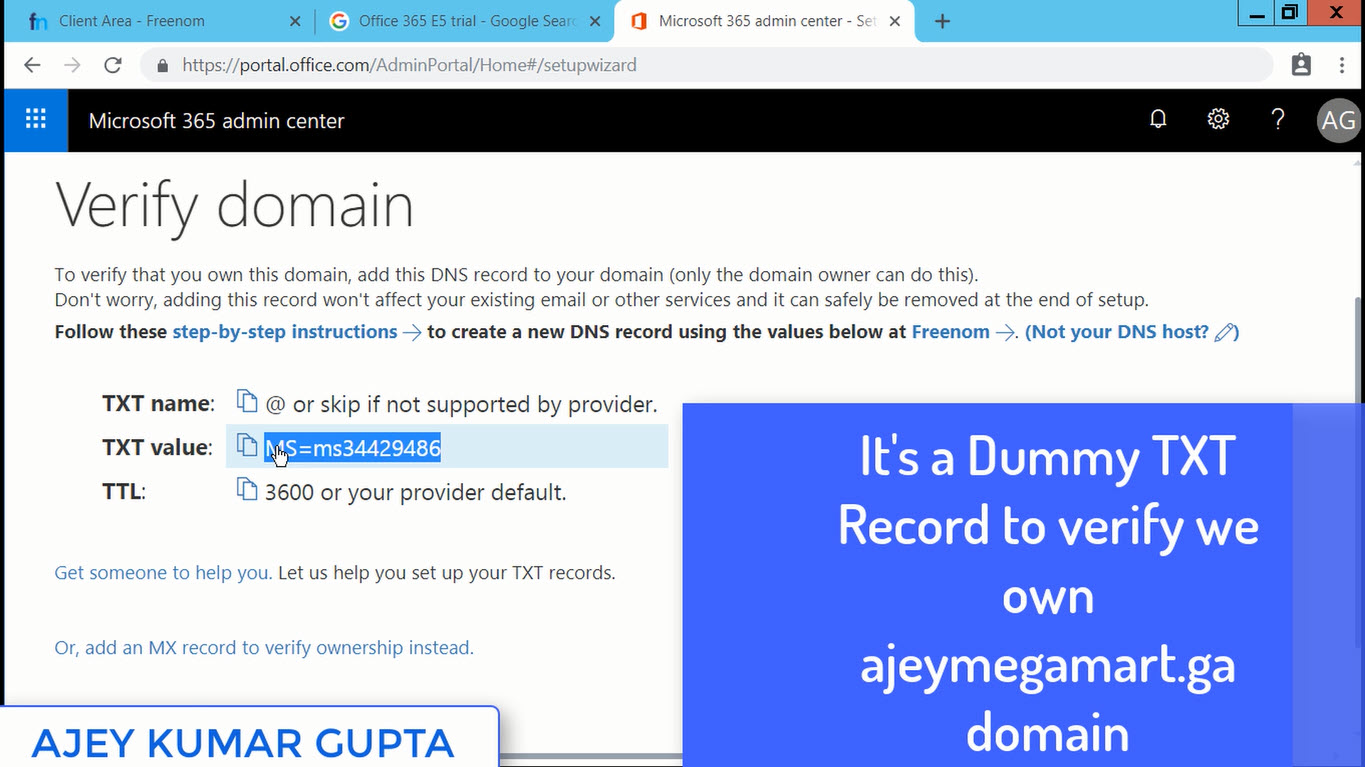
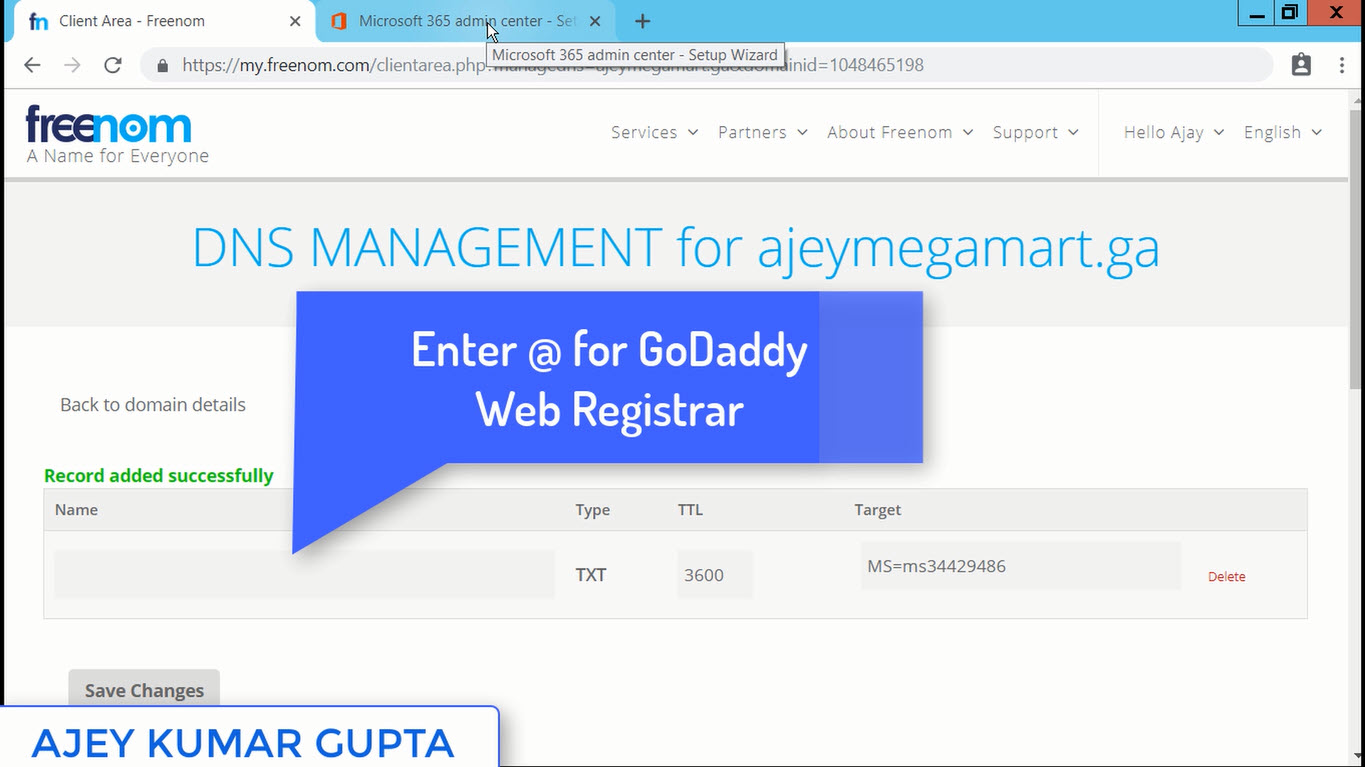
Step 6: Microsoft will ask us to prove that we own this domain ajeymegamart.ga, so for that it provides us a Dummy TXT Record to add  in our Domain Registrar DNS i.e., Freenom.com


Step 7: Add the TXT Record in the Manage DNS of ajeymegamart.ga Domain at Freenom.


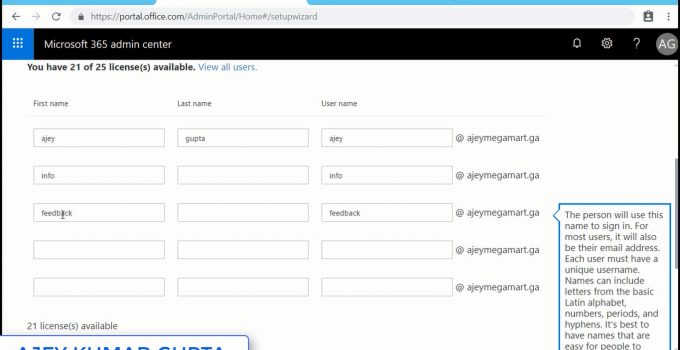
Step 8: Enter the users of your Organization or Business who require the Business Email Addresses to communicate with the clients.


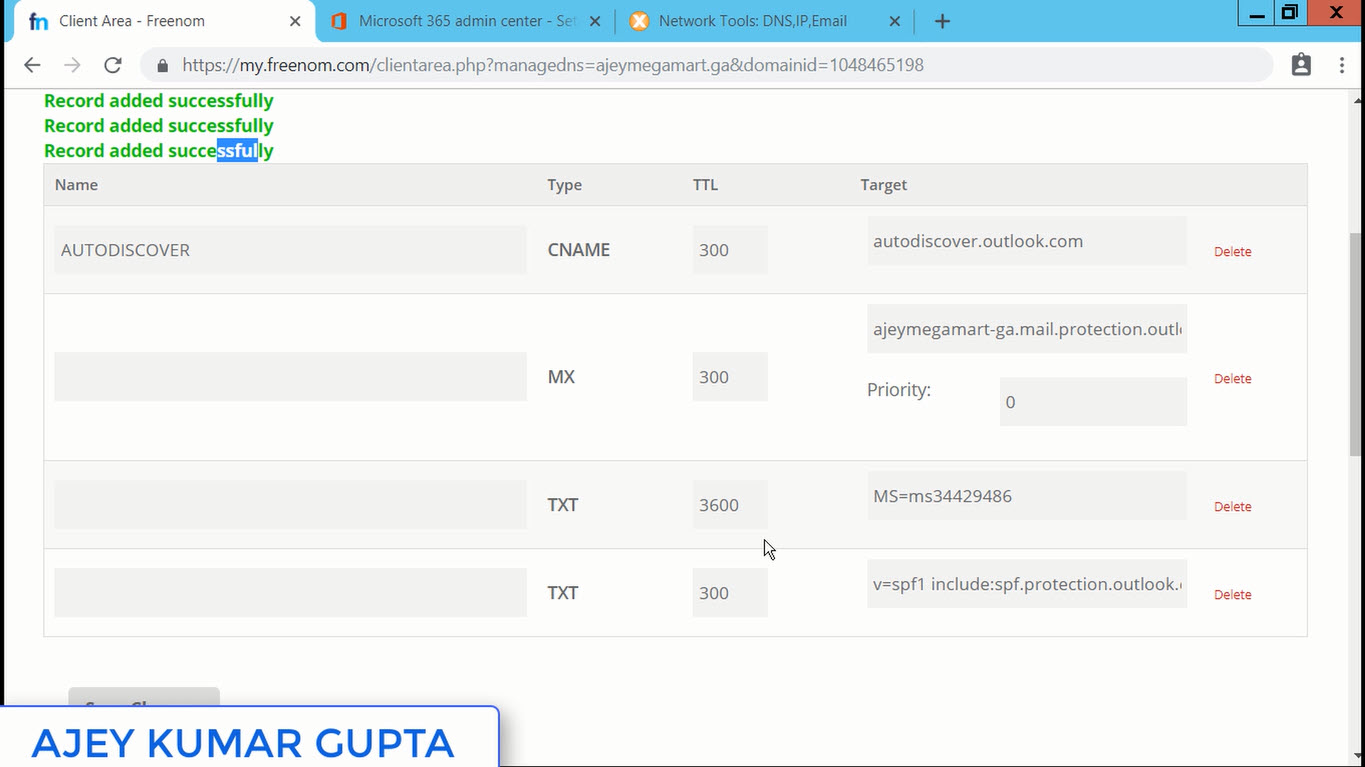
Step 9: After you entered the users, Microsoft will finally provide the real DNS records which will help your domain to get Office 365 Services. Add these in the DNS Section of Domain Registrar.

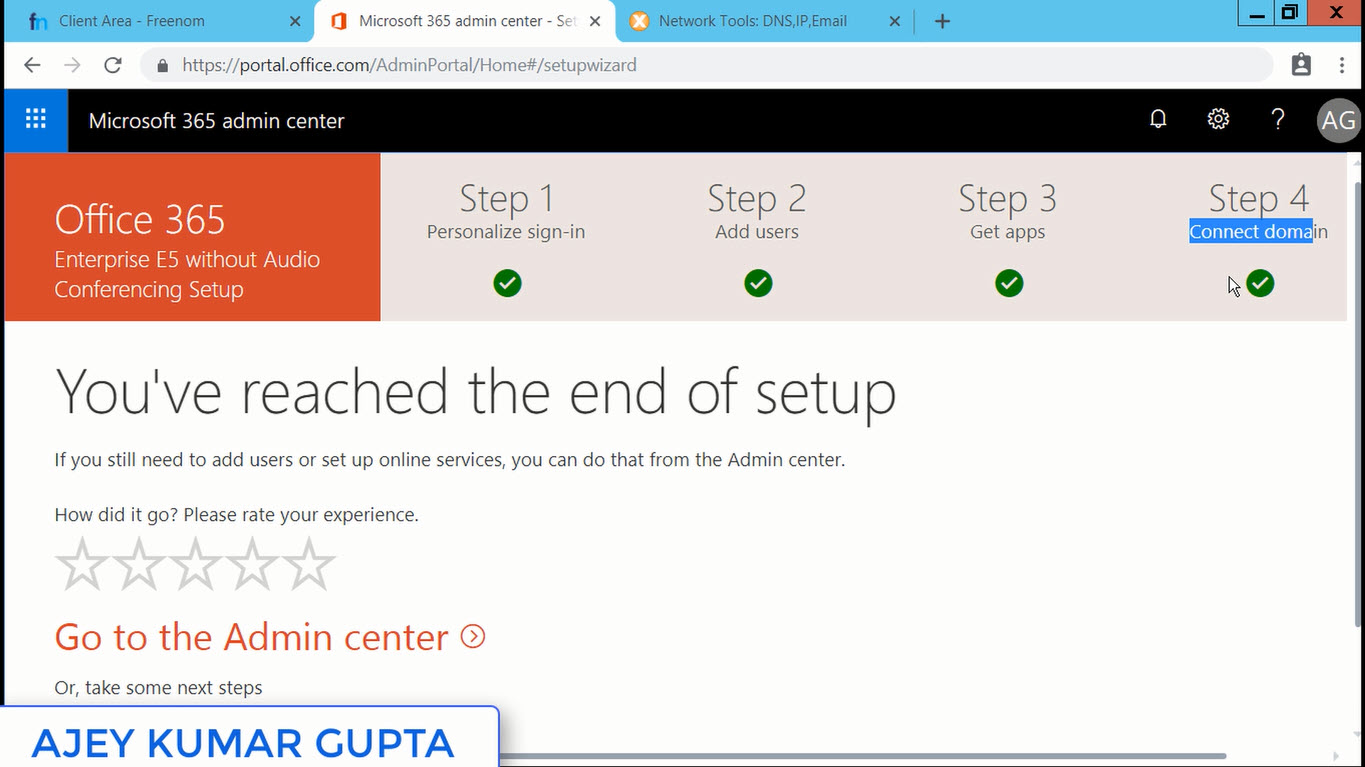
Step 10: The Initial Configuration of your Tenant is completed. Now click on Go To Admin Center.


Step 11:  We created the tenant using ajey@ajeymegamart123.onmicrosoft.com. Now we will log out from this user and login with our user having actual Email address associated with our business domain name. However, before logging out I will ensure that I must reset that user's password manually and assign him Global Administrator Rights.

Step 12: We will log out and login with our real email address i.e., ajey@ajeymegamart.ga

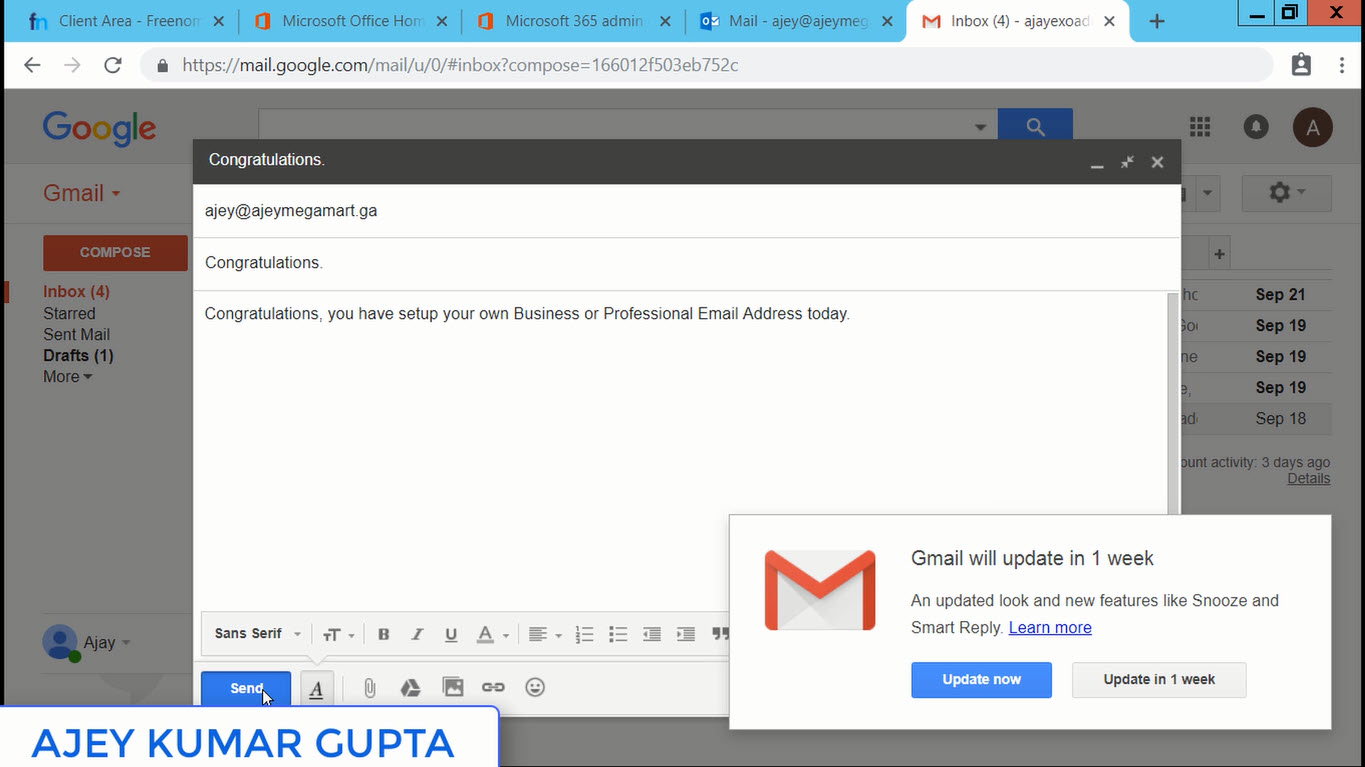
Step 13: We will try to send a test email from Gmail to our business email address. 


Step 14: Congratulations Friends, we have successfully received an email from Gmail. Now anybody in this world, may be our business client or our partner can send us an email on our business Email Address ajey@ajeymegamart.ga

You can share this Email address or get it printed on your Card and it will give a professional look to your profile.

Friends, if we send or receive Emails using our Business Email Address instead of gmail or hotmail, we promote our Business Domain along with our Website. In today's world your clients expect that you should have a website where they can find more about you and can communicate on your Business Email Address.

To get an real experience on all the steps, I am including the live demonstration in the video below. I hope it will give you crystal clear understanding of all the steps:

Read more: Click Here

Thanks a ton for reading my blog. If you have any queries or doubts regarding the steps performed or in the configuration, do post your comments below and I will try to revert asap.

Ajey Kumar Gupta
(Microsoft Exchange Admin)

Next Blog: How to create Premium LinkedInLearning Account Genuinely?

Wednesday, September 26, 2018

How to create Premium LinkedInLearning Account Genuinely?

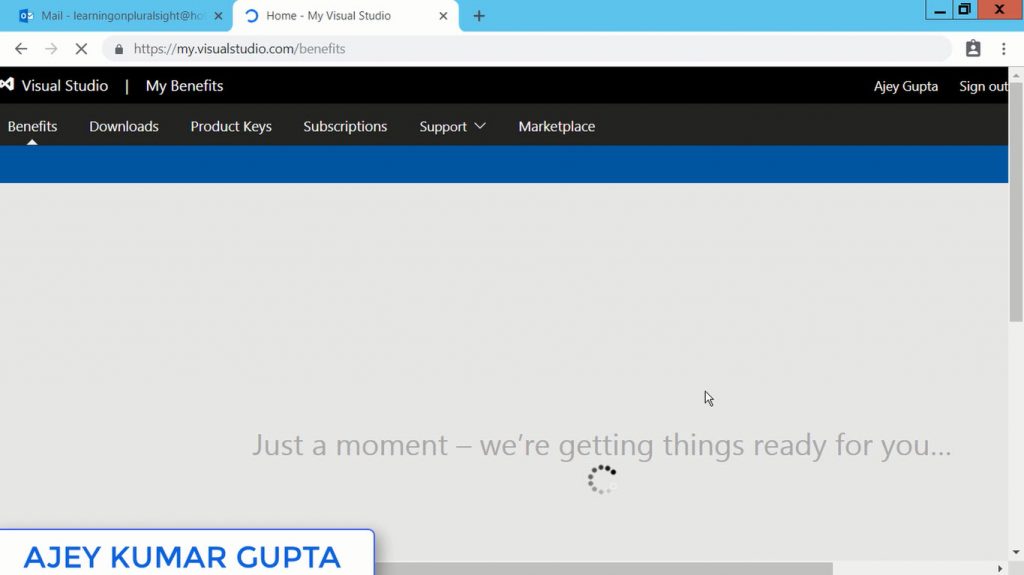
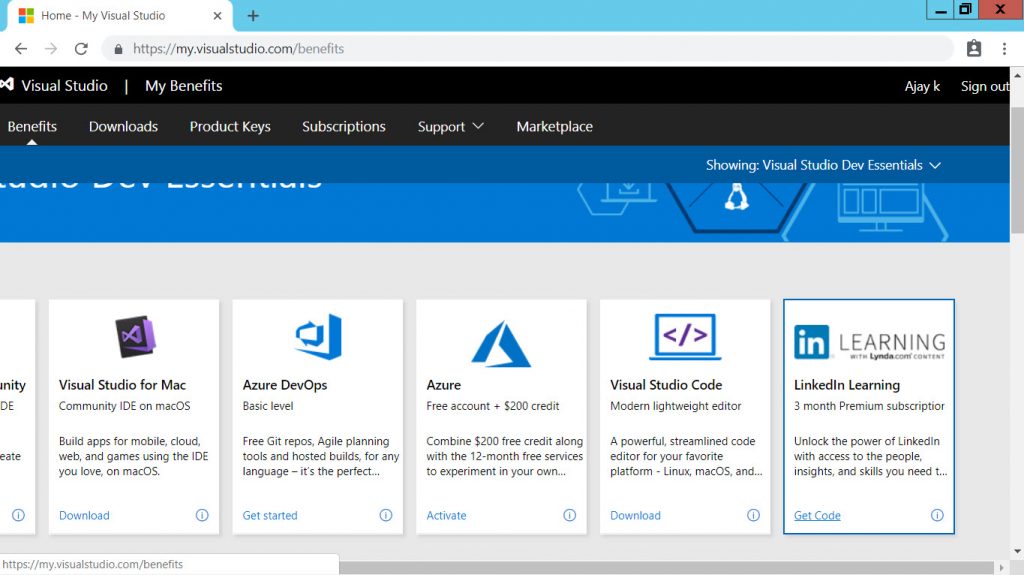
1) Login to https://my.visualstudio.com/benefits.

2) Use your Hotmail Account to Sign In to Benefits website mentioned above. If you don’t have one, create a new Account.


3) You will find LinkedInLearning Box from where you can get 3 Months Premium Subscription. Click Get Code.


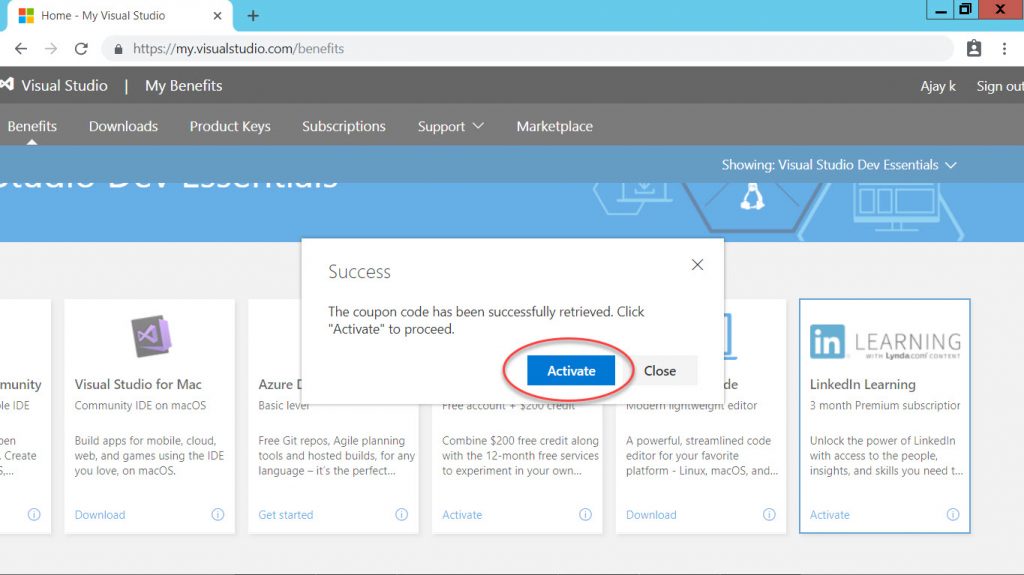
4) Click Activate.


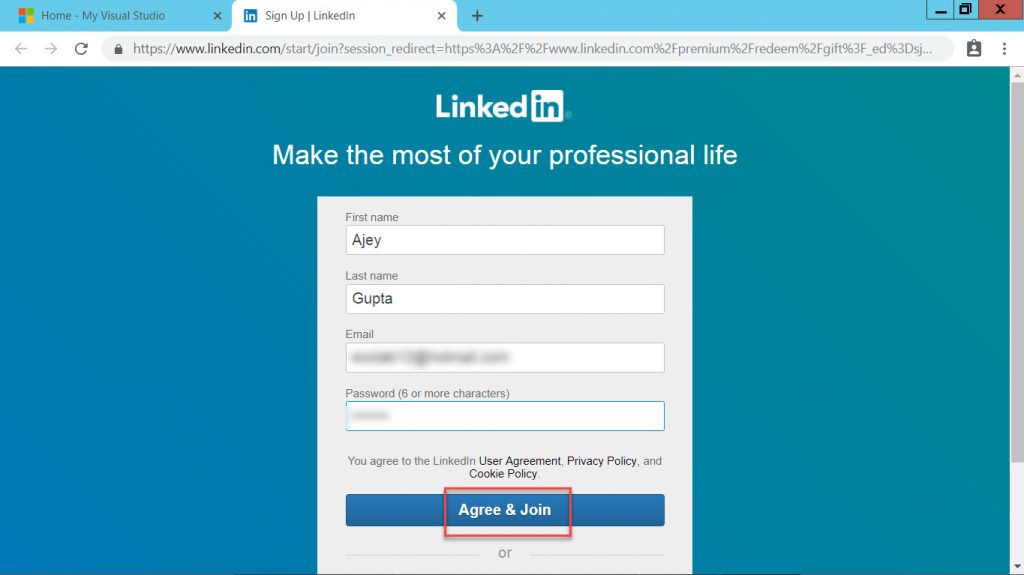
5) It will re-direct you to Linked In Website. Enter few details for LinkedInLearning Website. Click Agree & Join.


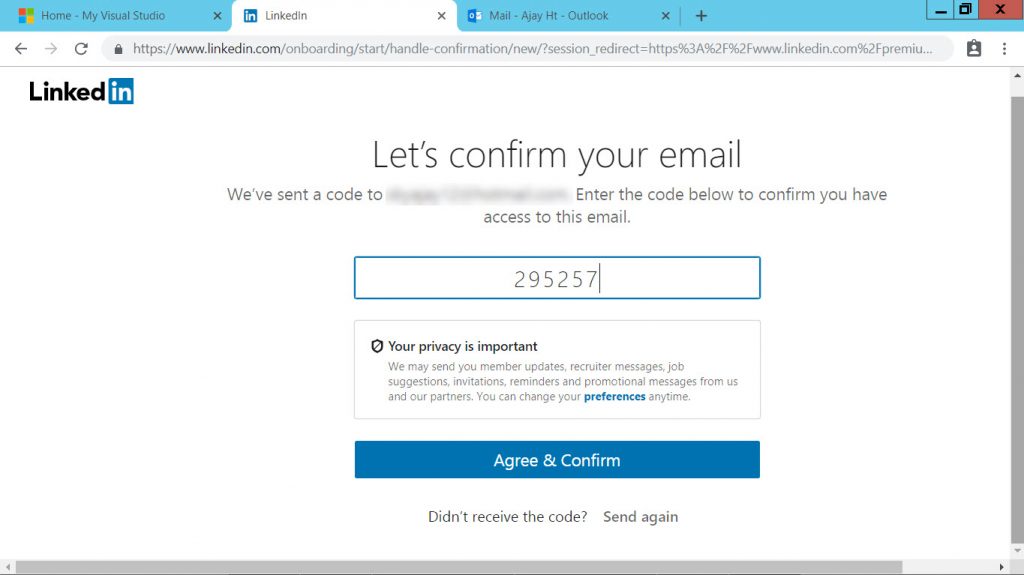
6) A code will be sent on an Email address used in the last step. Enter the code from the email. Click Agree & Confirm.


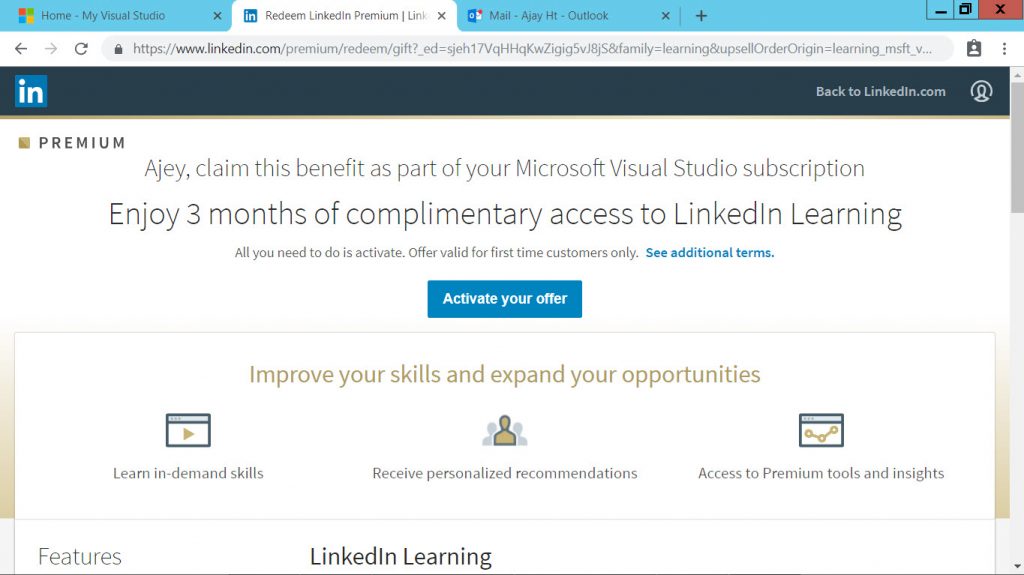
7) You will get a message “Claim this benefit as part of your Microsoft Visual Studio Subscription. Enjoy 3 months of complimentary access to LinkedIn Learning“. Click Activate Your Offer.


8) Congratulations friends, now you have an Access to unlimited LinkedInLibrary Professional Training videos free of cost to watch for complete 3 months.

Read More: Click Here

Friends, thankyou so much for reading my blog. If I helped you in any way please let me know by Commenting below.  Its very much appreciated. I will see you in the next blog.

Ajey Kumar Gupta
(Exchange Admin)


Thursday, September 13, 2018

What is an eSim? Future of SIM Cards !!!

An eSIM is an electronic SIM card. It will replace the physical plastic SIM card from all the current smartphones. It is a new embedded SIM technology, the iSIM, recently been announced by ARM.

An eSIM is also called eUICC soldered on Universal Integrated Circuit Card (UICC) which is not easily accessible or replaceable. It is not intended to be removed or replaced in the device it's installed and you can easily switch between carriers. You don't have to remove it to change the carrier. In India only Jio & Aitel is providing E-sim services.
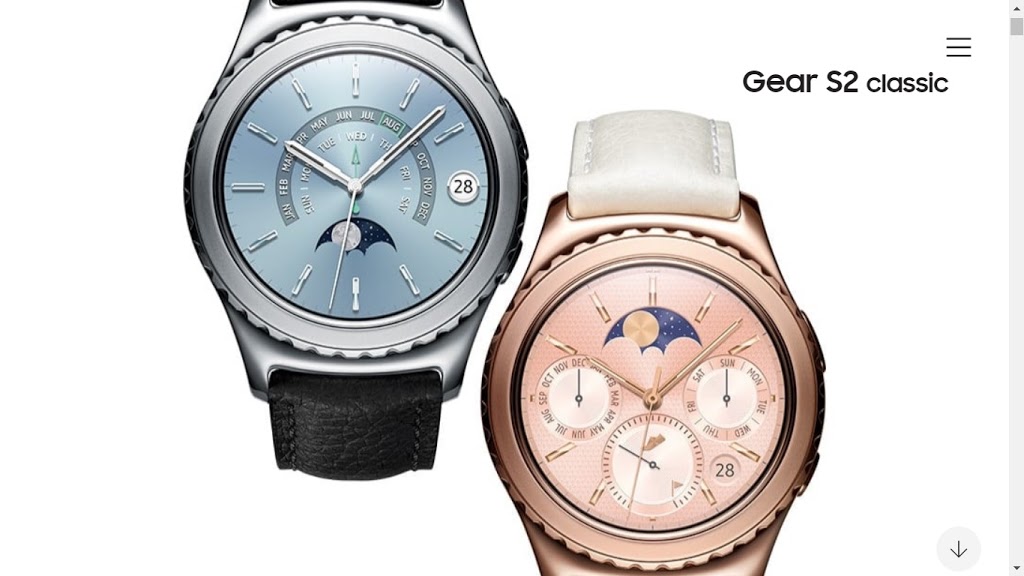
It was first used in Samsung Gear S2 classic 3G in 2016. However, it was Apple Watch 3 which brought eSIM technology into the spotlight. The eSIM can also be found on the Google's Pixel 2 Smartphone.

Now recently Apple has used the same eSim Technology in its latest flagships iPhone XR, XS and iPhone XS Max. The idea behind the eSIM is to allow users the freedom to use one Nano-Sim physically. You’ll be able to subscribe to a network using your phone just like you do on cellular-enabled iPads with the Apple SIM.

Benefits of an E-Sim:


It’s very small in size, just a small fraction the size of a nano SIM. That is why it makes it easy to ultra-compact gadgets like watches, which simply don’t have the room for a normal SIM.

An eSIM is non-removable and sits in the gadget similar to other electronic components.You don’t have to remove it to change your operator.

With such an embedded standard, the idea is you can switch to a new operator without inserting a specific operator sim. It’s all done through software.

One of the most interesting aspects of the Watch’s eSIM is that it’ll share your iPhone’s number. You can think of them as part of the same connection. However, this also means it’ll only work with an iPhone – and that your iPhone and Apple Watch will have to be with the same network provider.

I hope you would have got an idea what exactly is E-sim and you will not be able to remove it from the device. You can choose a carrier and instructions will be provided by them to configure it and start using the service.

Read More: Click Here

I hope you like my blog. Thankyou so much for coming back and giving your love to my blogs. Do subscribe, comment or share this blog with your friends.

Thanks,

Ajey Kumar Gupta
(Exchange Admin)

Next Blog: How to create Premium LinkedInLearning Account Genuinely?

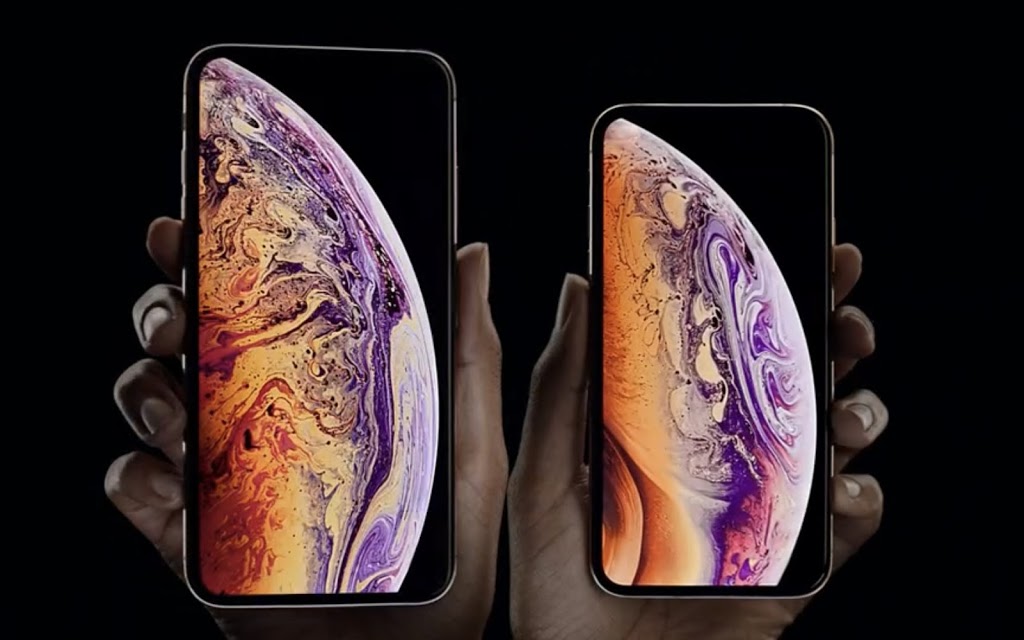
Apple's three New iPhones: iPhone XR, XS, XS Max with Dual Sim

Apple officially unveiled IPhone XR, XS, XS Max latest flagship iPhones with dual sim on September 12, 2018. (Video added in the last)

Iphone with Dual Sim? Ever heard. Never. But it true now. Apple has astonished all her fans by unveiling three new Iphones XS and XS Max and the cheaper XR.  However, the hidden fact is that there will only be one physical Sim on all these new Iphones, but then why is Apple boasting about dual sim. The second sim will be eSim and currently in India both Jio and Airtel supports it. Now lets find out what's new in these three Iphones:


Most Advanced iPhone Ever Features a 6.5-Inch, 5.8-Inch and 6.1 Inch All-Screen Design, with Powerful A12 Bionic Chip and a Breakthrough Dual Camera System


Iphone XR :


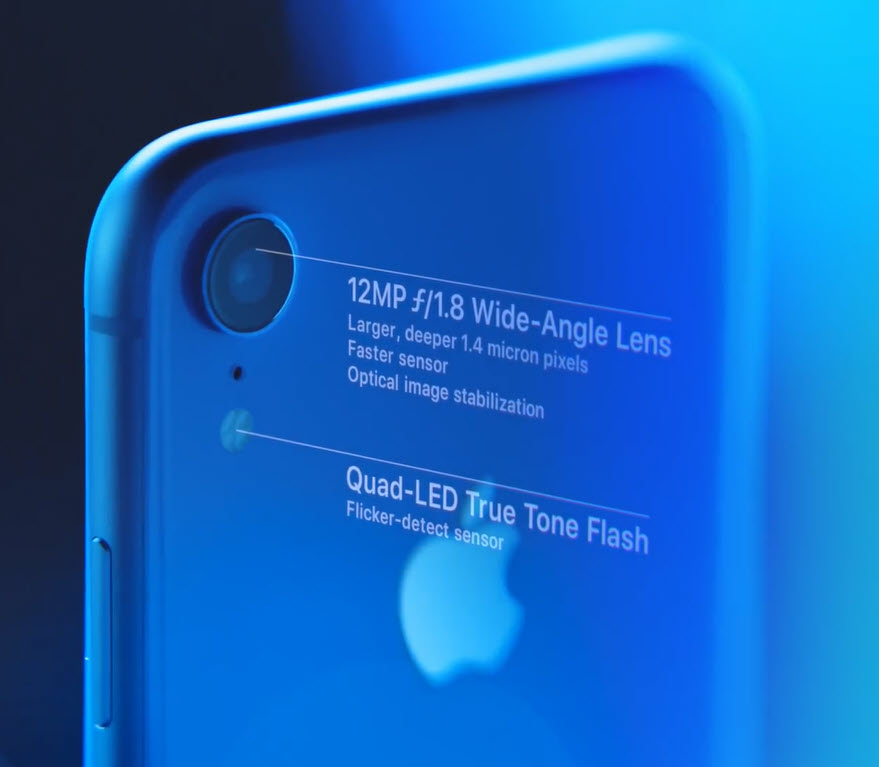
As revealed by Apple, iPhone XR will be the cheaper version. It comes with 6.1 inch liquid retina display, the latest A12 Bionic processor and a new 12MP camera system. It uses dual SIM through the use of a nano-SIM and digital eSIM. It lacks the dual camera however boasts about 12 mp Wide Angle Lens on its rear. In the front, it will have 7mp True Depth Camera & has features like Face ID.

It will available in 64GB, 128GB and 256GB configurations and six new colors: white, black, blue, yellow, coral and red.


IPhone XS :


The new iPhone XS comes with a Super Retina OLED 5.8 inch display with 3 million pixels and 458 ppi. It is made of a surgical grade stainless steel. The iPhone XS will come in silver, space gray and all-new gold.

Apple has used eSIM technology to provide dual-SIM support which acts as a software-based SIM alongside a physical SIM card. Both can be enabled on the iPhone at the same time, with separate phone numbers.

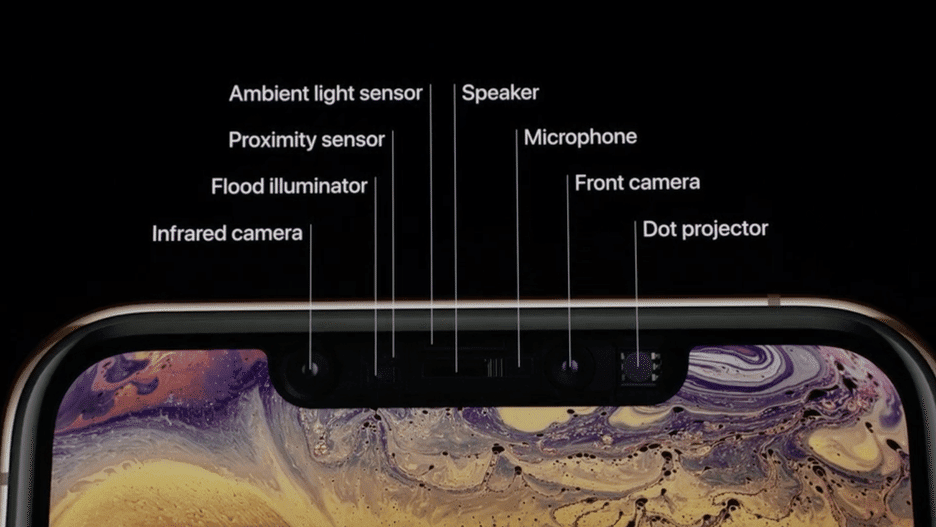
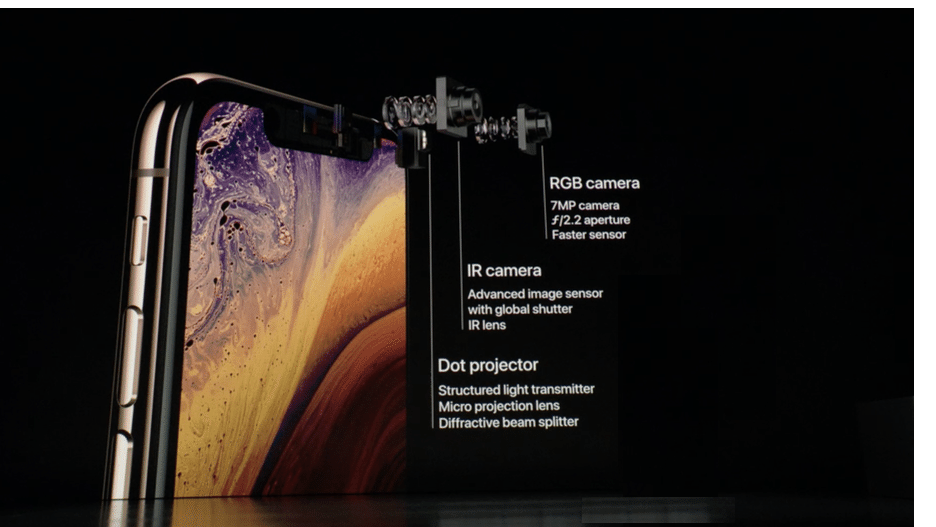
On the front, the iPhone XS and iPhone XS Max get a 7-megapixel RGB camera sensor that's said to be faster, and features an f/2.2 aperture.

XS includes a 12MP dual lens camera with "smart HDR" with "zero shutter lag", taking multiple frame shots at once, even of moving shots, combining the pictures together to "merge them into one perfect photo". Its neural engine can take photos and portraits in more detail than ever before.


It also has improved water resistance; to 2 meters for up to 30 minutes. Its battery will also lasts a half hour longer than the last year's iPhone X.

Iphone XS MAX :

It has the biggest display ever on an iPhone history. It has 6.5-inch OLED HDR display, slightly bigger than the 6.4-inch Samsung Galaxy Note 9. The phone's new A12 Bionic chip, a 7 nanometer processor, promises to launch apps 30 percent faster than 2017 iPhones, as well as speed up Face ID and improve photos and videos with automatic edits, such as white balancing and red-eye reduction.
The XS Max has the biggest battery allowing it to last 1.5 hours longer than last year's iPhone X. The XS lasts a half hour longer than the X.

Pricing of Latest Iphones:

The iPhone XR will start at $749, preorders will begin from Oct. 19.
The iPhone XS will start at $999, preorders begin from Sept 14.
The iPhone XS Max will start at $1099, preorders begin from Sept. 14

At the event, Apple also revealed details around Siri shortcuts coming with iOS 12. It integrates multiple apps right through actions sent via the digital assistant. A new Clips app was also announced, coming to the iPhone later this year.

Summary:

By reading the above blog friends, a question would definitely be arising in mind. What new in these new Iphones if we compare it with its previous year's Iphone X.

So friends, in short if you compare previous year Iphone X with latest Iphone models "XS and XS Max", you will get the exactly the same looks with an exception of improved fast processor which is built on "7 Nanometer design" and just new golden color added in XS and XS Max.

Comparison between Iphone X, XR, XS, XS Max:


FeaturesIphone XIphone XRIphone XSIphone XS Max
Screen5.8 Inch6.1 Inch5.8 Inch6.5 Inch
Capacity64, 256 GB64, 128, 256 GB64, 256, 512 GB64, 256, 512 GB
SimNano-SimDual SIM (nano-SIM and eSIM)Dual SIM (nano-SIM and eSIM)Dual SIM (nano-SIM and eSIM)
ProcessorA11A12A12A12
ChargingWirelessWirelessWirelessWireless
ColorSilver, BlackBlue,White, Black, Yellow, Coral(Peach), Red.Silver, Black & GoldSilver, Black & Gold
Weight174 Grams194 Grams177 Grams208 Grams

I have added the Video so that you can have  a better understanding. Do hit Play Button Below:

Apple is well known for its innovation and has tried to launch something new this time with eSim Technology. I wish Apple a huge success in making dual Sim Mobiles for its fans. I hope you would have got some new information from my blog. If you have any suggestions, comments or feedback please do post below & subscribe to get latest updates.

Read More: Click Here

Thanks,

Ajey Kumar Gupta
(Exchange Admin)

Next Blog: How to Setup Port Forwarding on a Router?

Tuesday, September 11, 2018

How to Setup Port Forwarding on a Router?

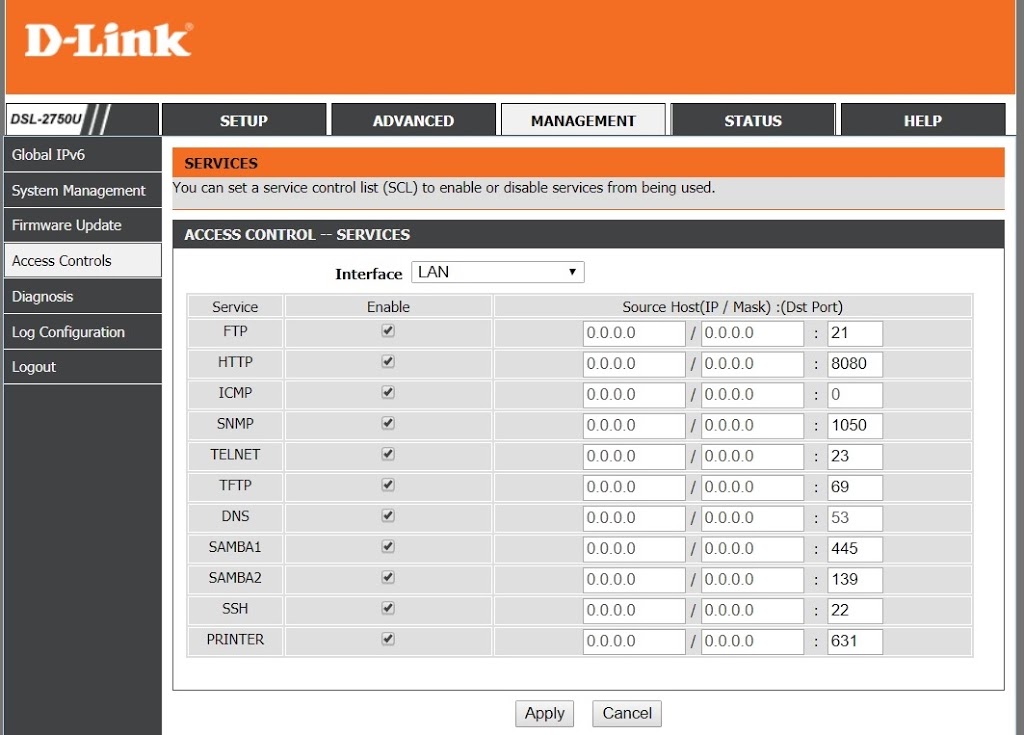
In this blog, we will learn how to setup Port Forwarding on any Router. Generally we get the error message while setup up Port Forwarding in D-Link 2750U or DIR 615 Routers.

"The Access Control Service port 80 is in the external port range, please reset the external port range or the Access Control Service port! "

Users using D-Link 2750U or DIR 615 Routers generally face a tough time to setup Port Forwarding on Port 80. It throws the above error message.

In short it means Port 80 is in use by "Access Control Service", release it first to set port forwarding.

Resolution:

a) Open 192.168.1.1 to open admin page of D-Link 2750U or DIR-615.

b) Management Tab - Access Control - Services.


c) Select Interface - Lan and change Http Port from 80 to 8080. Click Apply.
Note: From now D-Link Router page will open using Address 192.168.1.1:8080

d) Now we will be able to set the Port Forwarding using Port 80 on our Private Ip Address, 192.168.1.x

e) Open Advanced - Port Forwarding. Add the Service - Select Wan Connection - Server IP Address(Host Name): Private Ip address on which Services are hosted e.g., Web Server. At bottom add 80 in all boxes of first row.


Using this easy method, Port Forwarding can be set easily on D-Link's 2750U or DIR-615 Wireless Router.


Read More: Click Here

Thanks a ton for reading my blog. I tried my best to keep things simple, in case you face any issue, do post it below and I will try to help you asap. If it helped you in any way, please post your comments or feedback.

Thanks,

Ajey Kumar Gupta
(Microsoft Exchange Admin)

Next Blog: How to build your free E-Commerce / Blogger Website.

Sunday, September 9, 2018

How to build your free E-Commerce / Blogger Website.

Mostly famous personalities have their own websites. So how can you join in their list, and maybe even make some money while creating your own one? I feel privileged to walk you through the path of creating your website and have it live on the internet in just a few minutes.


Key Points to keep in mind while creating the Website:

1. Determine the needs of your website.

2. Find a free website-building service that meets your needs.

3. Sign up for an account.

4. Select and purchase a domain name (Website Name).

5. Select a theme and layout.

6. Add content.

7. Publish your site.

8. Optimize your site for search engines.

Few things to confirm yourself:

You have to have an idea about what kind of website you want to have. The needs of your website will dictate what kind of hosting service you should be looking for. If you intend to do business through your website, you’ll need to make sure that the host supports online stores. If you want a blog, blogging sites can get you set up in just a few minutes.

Easy Steps to Create your own Website and make it live on the internet:


1) Open the website https://www.freenom.com and click Sign In at Top Right Corner. You can use any of your Gmail or Facebook Accounts.


2) Click Services Tab and Register a New Domain.


3) Try to enter the name you want for your website in the "Find Your Domain Name" & check its "Availability". For Demo Purpose I have chosen the domain name "Onlinedailyoffers".


4) We can get Onlinedailyoffers domain name with all these Top Level Domains .tk, .ml, .ga, .cf, .gq, So lets choose Onlinedailyoffers.ml to be our domain name and create a new website from this domain.


The question arises in the mind.....I have my website name. So will it work by itself if I type on the browser.


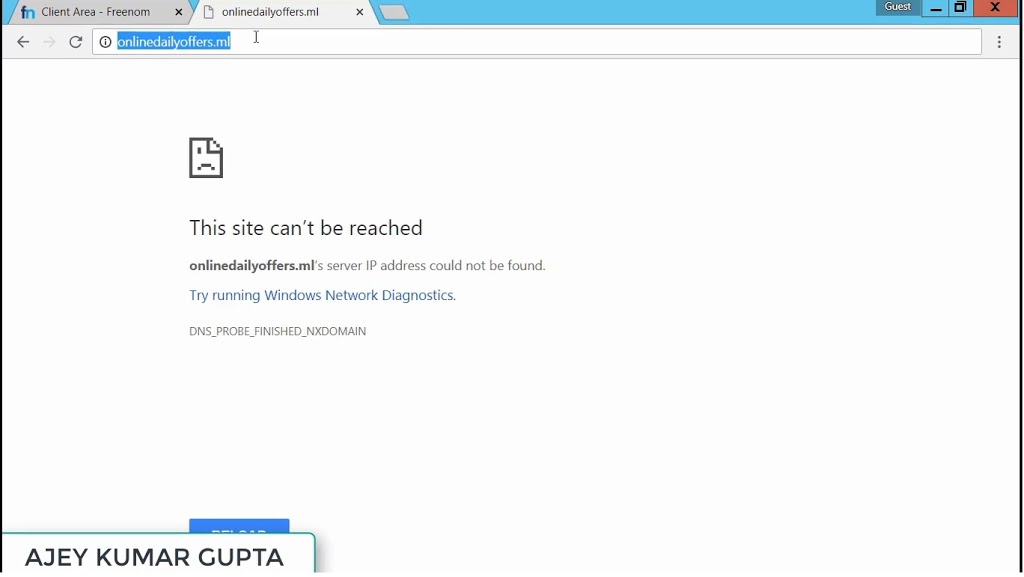
Lets check when we open the domain itself what's do we see ?


Wait!!!! I have my domain name registered on my name. Then why my website is not opening from the internet?


Let me explain you. Domain name is the unique name which once registered on your name, nobody else can register the same name. But If I ask you where is the content of your website, you would have some text, photographs, important things to sell or share. Did I add them anywhere. No, hence for adding the content in the website, hosting is required after purchasing Domain Name.


6) Lets visit the best free hosting provider for beginners, bloggers, small businesspersons https://profreehost.com/. We have to sign up & create a new account using our Personal E-Mail Address. Then complete the Activation of Account from the Email sent to your Email address.


7) Before hosting your domain on Profreehost, it asks you to Point your Domain to its NameServers. To do that we will go to our Domain Registrar Freenom Website - Services Tab - My Domain - Select the Domain & click Manage Domain - Management Tools - NameServers - Use Custom NameServers. 

Add all the four name servers provided by ProfreeHost one by one. (Watch the video shared at the bottom of this blog.)


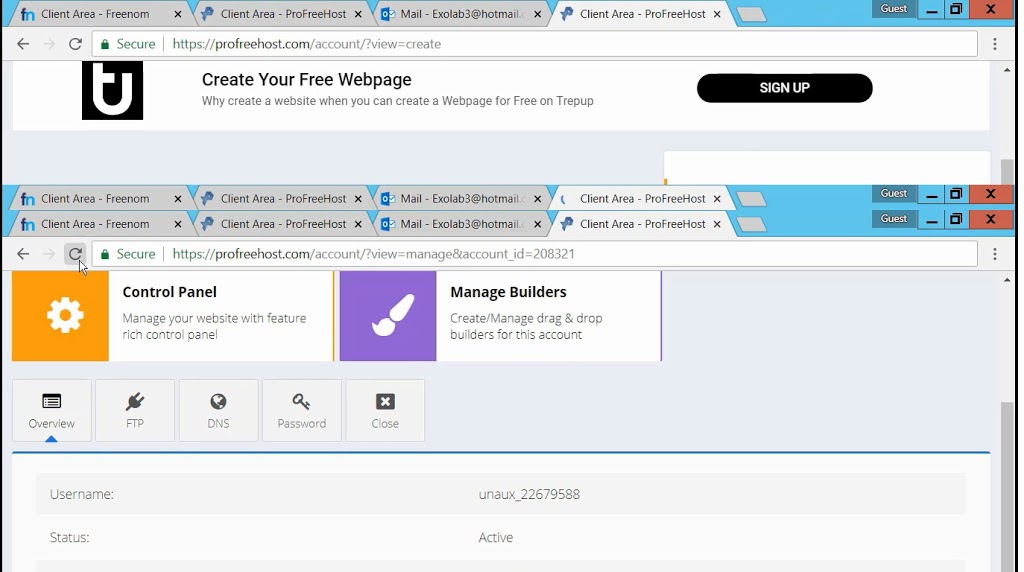
8) At Profreehost.com - we will click Create New Account to add the Domain Name. We can add upto maximum 15 domain names i.e., we can host 15 domains under one Account on Profreehost.com. Don't get confused by creating a new account for logging in to profreehost. We are already Logged in, by Creating new account its asking us to enter our domain name. Let me show you the screenshot below:


9) We have added the domain name Onlinedailyoffers.ml and will click Manage. It will try to add the domain name to its service. We have to click Manage (Green Color Icon).


10) We will get Control Panel Icon. Click on it.


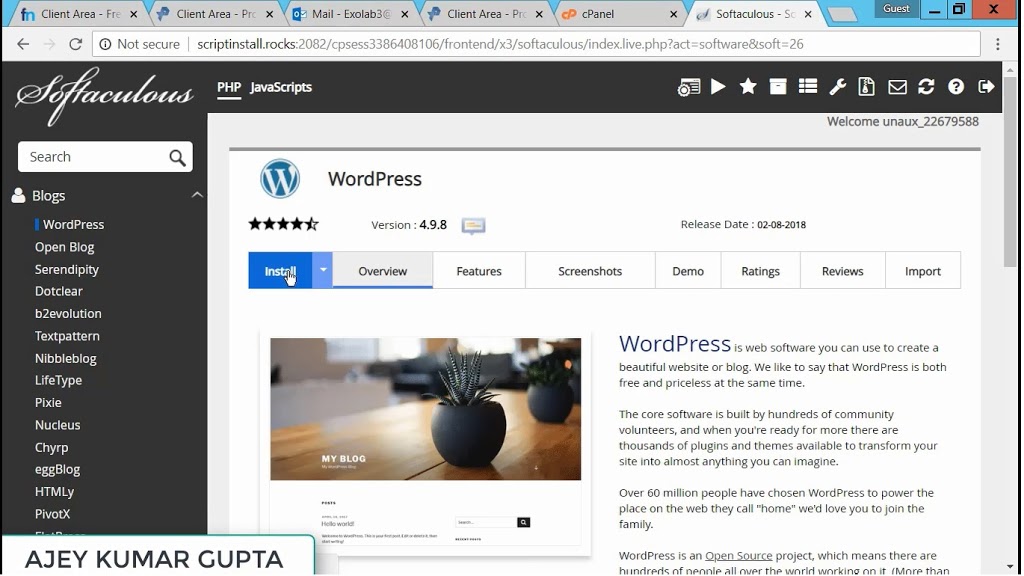
11) A new Page will open. Scroll down. Under Software click Softaculous Apps Installer. A new page will appear.


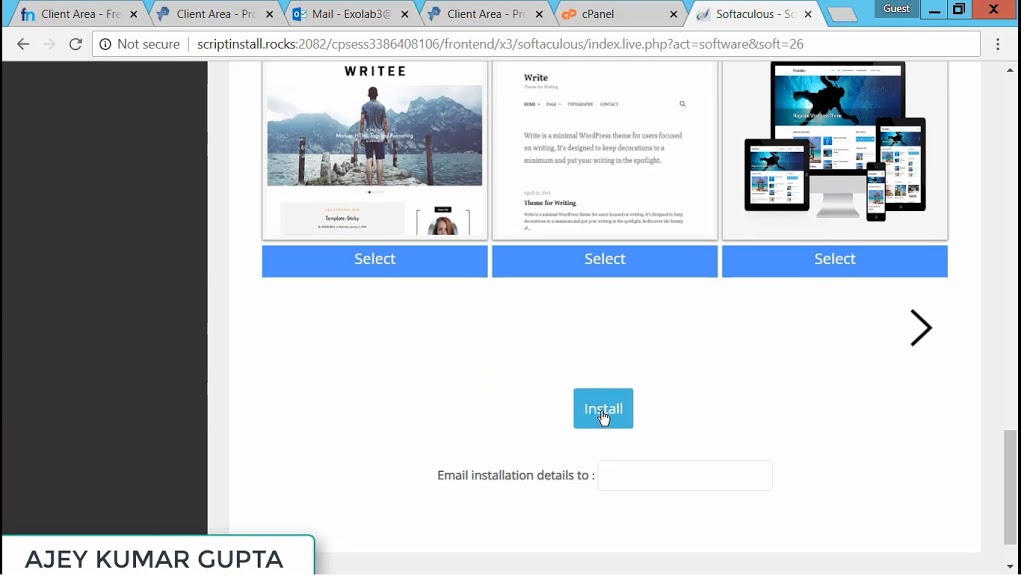
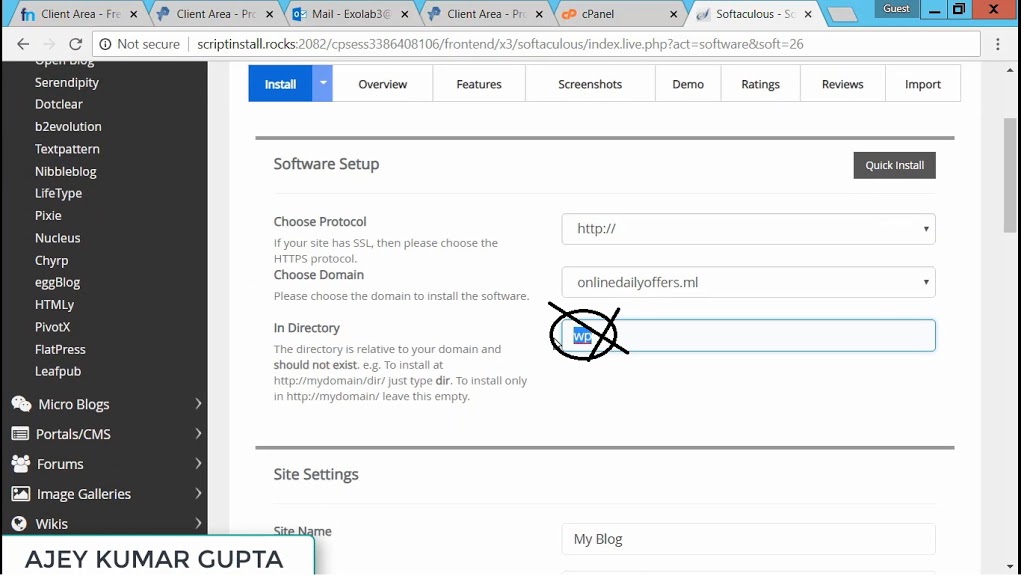
12) On the next page, click Blogs - Wordpress - Install on Right hand side.


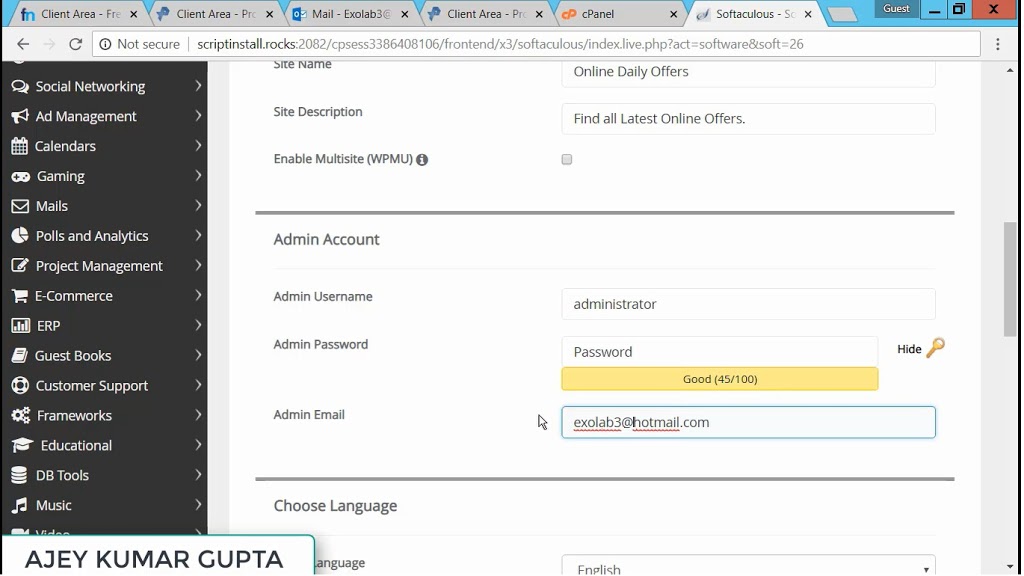
13) Remove "WP" from the In Directory.


14) Enter Website Administrator Credentials who will be managing it. You can enter the same Email address which you used to create the account for ProFreeHost.com


15) Click Install in the End of the page.


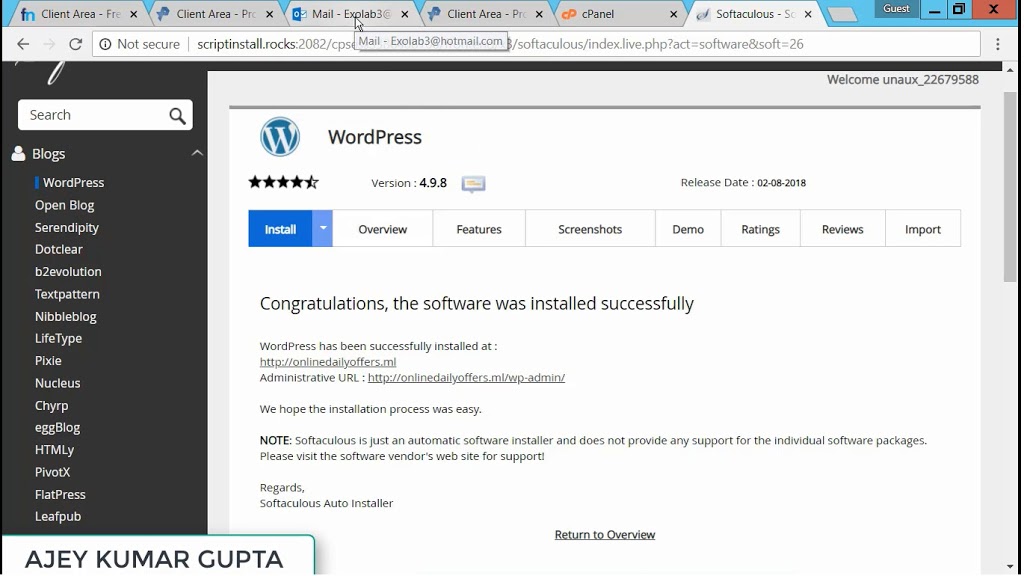
16) Congratulations, the website is now hosted on Profreehost.com and can be accessed by anyone in this world. To Open the website open http://Onlinedailyoffers.ml and will find the page will open.

Note: It may happen that the website may take few minutes to start. Its recommended to wait for at least 5 minutes.


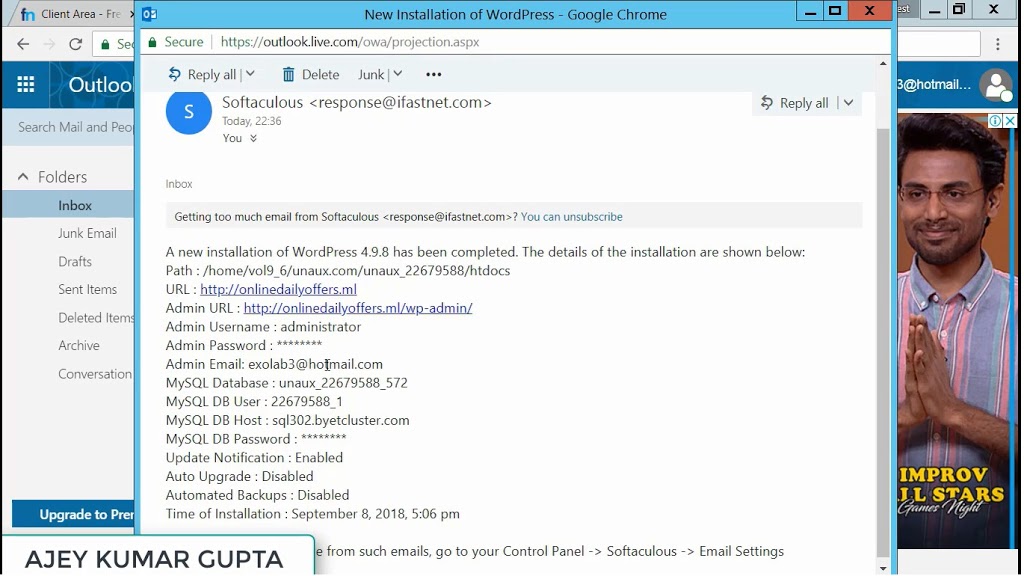
17) At this stage, an email is sent from Profreehost.com on your registered Email address providing you all the details of your website hosting along with the URL of your Website and Admin Control Panel URL as well.


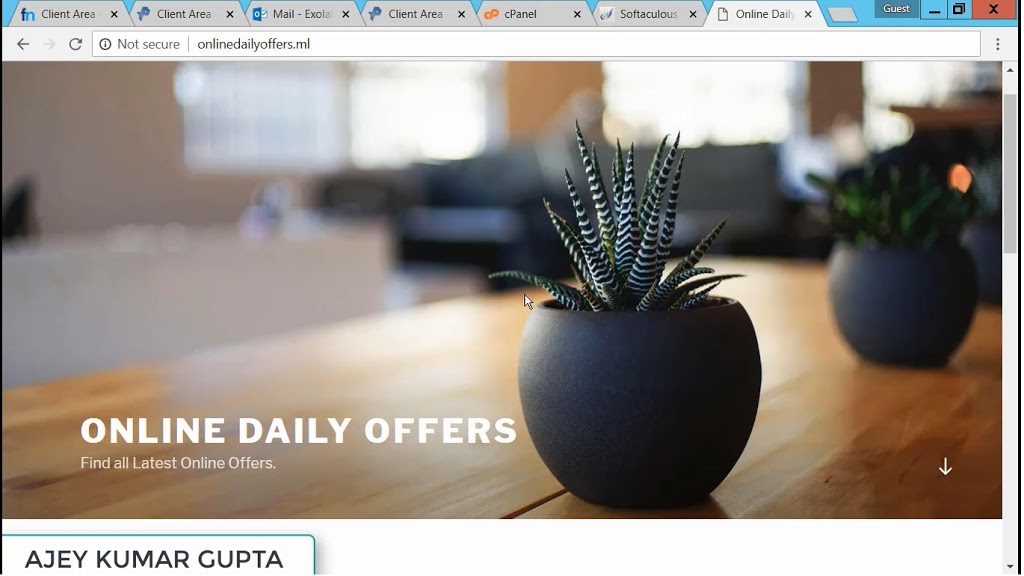
18) Lets quickly open the website now and see how beautiful it looks by default:


19) Finally lets check the Website Admin Control panel Page from where you can make changes in your website. You will get the link of this page in an Email by ProfreeHost.com.


20) You can Edit the Existing Posts, Create New Posts and Install new Themes and give your website an amazing new look.


I tried my best to keep the things as simple as possible for you to understand everything. Additionally, I have added an easy Video Demonstration so that you can see all the steps live yourself. Watch it once....Click Play Button below:


[youtube https://www.youtube.com/watch?v=A7RbownM3B0?feature=player_embedded]


Read More: Click Here


Thanks a ton for reading my Blog. If you got to know something new from this blog, do Subscribe, Comment and Share your feedback below.


Ajey Kumar Gupta
(Microsoft Exchange Admin)

Next Blog: Azure AD Connect: How data migrates to Cloud?